

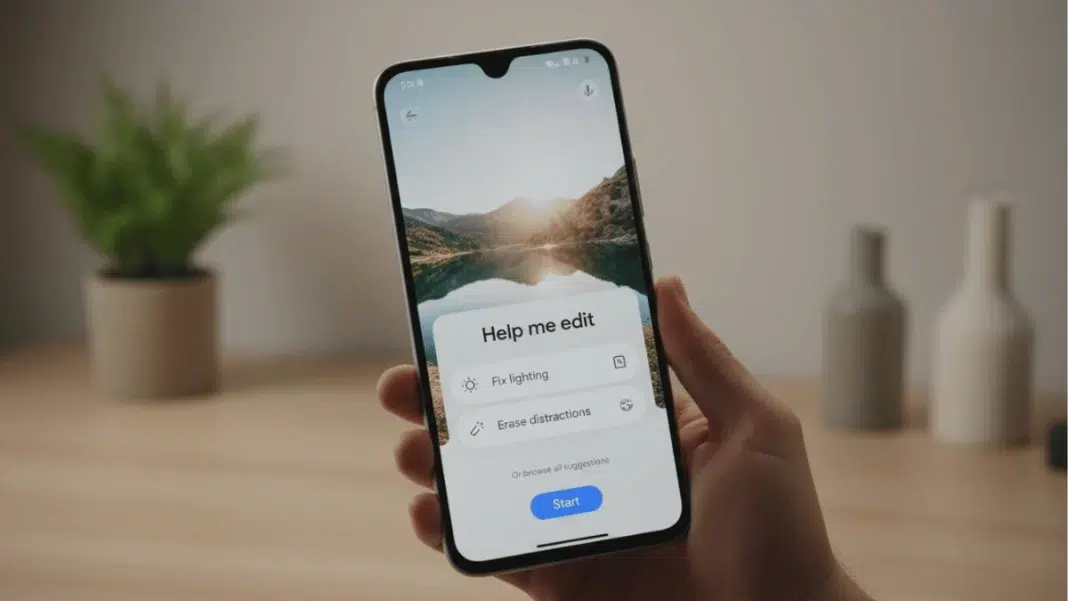
Google Photos now lets you edit pictures by describing what you want. Type or say a short instruction, and the app applies the change for you. These Google Photos editing prompts can remove reflections, expand the frame, fix lighting, or even reimagine a scene. In this guide, we show you how it works, give you 10 prompts to try, and share tips to write better prompts that save time.
Google Photos now lets you edit pictures by describing what you want. Type or say a short instruction, and the app applies the change for you. These Google Photos editing prompts can remove reflections, expand the frame, fix lighting, or even reimagine a scene. In this guide, we show you how it works, give you 10 prompts to try, and share tips to write better prompts that save time.
What are Google Photos editing prompts?
Editing prompts are plain-English instructions you give inside the Photos editor. Tap Help me edit, describe the change, and Photos does the rest using Gemini. You can chain multiple requests, like “straighten the photo, fix the shadows, and make the grass greener,” or keep it simple with “make it better.”
Today, the feature is available to eligible Android users in the U.S., with Google highlighting a simple flow: open an image, tap Help me edit, then type or speak your request.
Photos prompts are natural language instructions inside Help me edit that apply AI edits such as object removal, lighting fixes, composition changes, and creative remixes, without manual sliders.
Quick start: use “Help me edit”
- Open the Google Photos app on Android.
- Open any photo, tap Edit, then tap Help me edit.
- Type or speak your request, for example “remove the reflection on the window.”
- Review the preview, refine with a follow-up prompt, then save.
Tip: If you choose Reimagine for part of an image, you can enter a descriptive phrase like “field of yellow flowers,” then swipe through options. Specific prompts tend to look more natural.

10 prompt examples you can copy
The Google post shares clear examples. We’ve adapted them with extra guidance so you know why they work and how to tweak them.
- Remove window glare
Prompt: “Remove the reflection on the window.”
Why it works: A precise target (“reflection”) and location (“on the window”) reduces artifacts. - Tidy up busy backgrounds
Prompt: “Erase the fence and the timestamp, zoom out a little, and sharpen.”
Why it works: You can stack tasks in one go. Keep the order logical, big edits first. - Fix flat selfies
Prompt: “Add studio lighting to make me stand out.”
Why it works: It targets the subject and the lighting style, not a vague “brighten.” - Expand tight framing
Prompt: “Expand the composition and improve the overall look.”
Tweak: Follow up with “keep the subject centered” if the crop feels off. - Preview interior changes
Prompt: “Reimagine this room with a light wood bookshelf and warm string lights.”
Add detail: Material, tone, and placement reduce odd results. - Add seasonal flair
Prompt: “Fill the grass with sunflowers.”
Guardrail: If it overdoes it, say “make them sparse” on the next pass. - Pet in costume
Prompt: “Add a cute pumpkin costume to my dog.”
Ethical note: Cute edits are fine for fun, just disclose edits if it matters. - Restore old photos
Prompt: “Restore this old photo and make it sharper.”
Follow-up: “Reduce noise around faces, keep skin texture natural.” - Batch multiple fixes
Prompt: “Straighten the photo, fix the shadows, and make the grass greener.”
Order tip: Orientation, tone, then color often yields cleaner results. - Go fully creative
Prompt: “Make it look like my dog is skiing on the Moon, add a small spaceship on the ground.”
Caveat: Surreal edits are fun, but can look synthetic on close inspection—zoom in before posting.
Write better prompts: a simple framework
Use this 5-part nudge when you type: Subject, Area, Action, Style, Constraint.
- Subject: who or what to change.
- Area: where in the frame.
- Action: remove, add, expand, restore, sharpen.
- Style: studio lighting, warm tone, vintage film, subtle.
- Constraint: keep skin natural, keep horizon level, keep colors realistic.
Example upgrade
Basic: “Fix lighting.”
Better: “Brighten the subject’s face, keep background slightly darker, preserve skin texture.”
This structure mirrors what Google’s own prompt guides suggest for image tasks: be specific about elements, positions, and style.
When to use prompts vs manual tools
Prompts are fast. Manual tools still win on precise control. For many quick wins—erasing clutter, restoring old pics prompts are hard to beat. For tricky color work or subtle skin retouching, manual sliders or a pro app may still be better. Android sites that tested the feature noted impressive results, with occasional over-smoothing or context misses on the first try.
Pros and Cons
| Approach | Best for | Benefits | Trade-offs |
|---|---|---|---|
| Prompts in Help me edit | Fast cleanup, lighting fixes, playful remixes | Very quick, no tool hunting, multi-step edits in one prompt | Less granular control, results may vary |
| Manual tools in Photos | Fine tonal tweaks, crop rules, local fixes | Predictable, repeatable | Slower, more taps |
| Third-party pro apps (e.g., Snapseed) | Advanced color, local edits, RAW | Maximum control | Learning curve, more time |
Availability, devices, and content credentials
Conversational editing launched on Pixel 10, then expanded to more Android phones in the U.S. Look for Help me edit in the Photos editor. Media outlets and Google’s own posts confirm the wider rollout, though availability may still vary by device and region.
Google is also adding C2PA Content Credentials in Photos so you can see when and how an image was captured or edited. That transparency appears alongside existing IPTC and SynthID signals for AI-assisted edits.
Limitations and considerations
- Availability is currently described for eligible Android users in the U.S. Feature timing can change.
- Heavily creative remixes can look uncanny at full size. Check edges and shadows.
- If edits change the meaning of an image, consider disclosing them C2PA helps here.
Frequently Asked Questions (FAQs)
How do I use Help me edit in Google Photos?
Open a photo, tap Edit, tap Help me edit, then type or say your prompt.
Can it remove reflections or objects?
Yes. Try “remove the reflection on the window,” or “erase the fence,” then refine if needed.
Is this on iPhone?
Google notes a gradual rollout, starting with Android in the U.S. Timing can change by region and platform.
What if my result looks odd?
Add a follow-up like “more natural skin,” “keep horizon straight,” or undo and try a narrower prompt.
How do I do creative background swaps?
Use Reimagine or a clear prompt describing the new scene and style.
What are Content Credentials?
C2PA markers show how an image was captured or edited. Photos is adding support so people can verify changes.
The Bottom Line
Use Help me edit in Google Photos, write specific prompts with a clear subject, area, action, style, and constraint, and chain requests when needed. Start with the 10 ideas above, then refine with follow-ups for more natural results.

Featured Snippet Boxes
How do I use Help me edit?
Open a photo in Google Photos, tap Edit, tap Help me edit, then type or say what you want changed. Review the preview, refine if needed, and save.
Best Google Photos editing prompts
Try: remove reflection on the window, erase the fence, add studio lighting, expand the composition, restore this old photo, fill the grass with sunflowers.
Can it fix old photos?
Yes. Use a prompt like restore this old photo and make it sharper, then add a follow-up like reduce noise around faces for a natural result.
Is it Android only?
Rollout started on Android in the U.S. Wider device and region support is expanding over time, so availability may vary by phone and account.

