

Quick summary
Who it’s for: Anyone upgrading a laptop, desktop, console, or making a fast external drive.
What you’ll learn: How to pick the right SSD by checking fit, speed, endurance, and value.
Checklist for Buying an SSD
- Will it physically fit and connect in your device?
- Is the real-world performance right for your workload?
- Does the drive’s endurance and warranty match your usage?
- Are you getting the best capacity and price per GB for your budget?
Table of Contents

SSD basics in one minute
Types at a glance:
- SATA 2.5-inch: up to ~550 MB/s. Great for older PCs and budget upgrades.
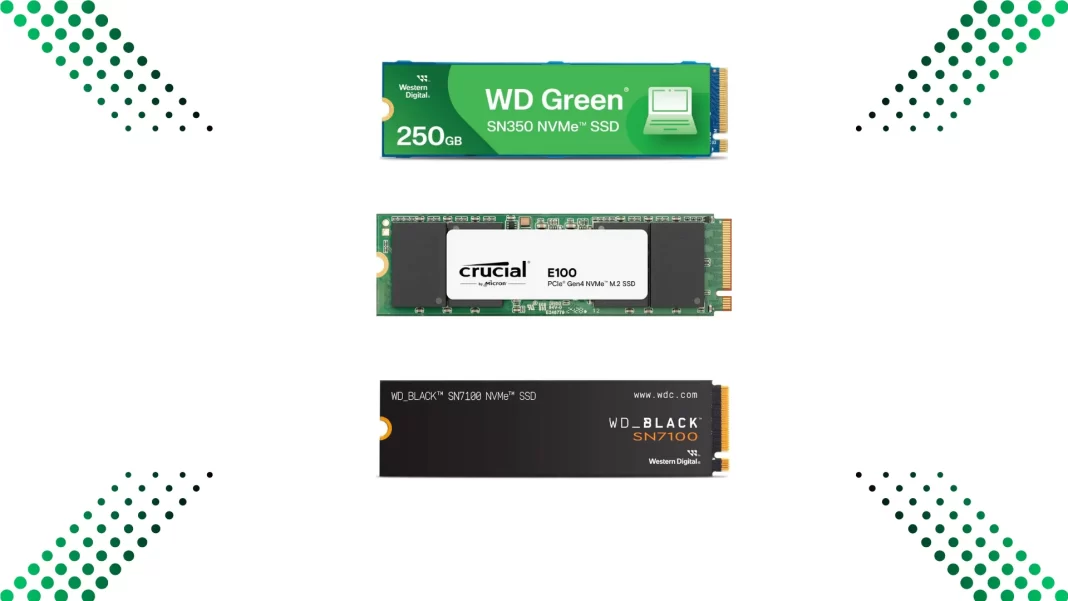
- NVMe M.2: much faster. Uses PCIe lanes. Common sizes are 2230, 2242, 2260, 2280, 22110. Most consumer drives are 2280.
Where each fits:
- Laptops: usually one M.2 slot. Some older models take 2.5-inch SATA.
- Desktops: one or more M.2 slots on the motherboard. 2.5-inch bays for SATA.
- Consoles: PS5 requires a PCIe Gen4 M.2 NVMe with a heatsink that fits the bay.
- External: NVMe in a USB or Thunderbolt enclosure for portable speed.
Check 1: Will it fit and work in your device?
Form factor and slots
- 2.5-inch SATA: uses a SATA data and power cable.
- M.2 sizes: the four digits show width and length. Example: 2280 is 22 mm wide, 80 mm long.
- Keying:
- M-key: typical for NVMe.
- B-key or B+M: often SATA or some NVMe on older laptops. Match the slot.
Interface and lanes
- SATA: simpler, slower, widely compatible.
- NVMe over PCIe: faster. Check which PCIe generation your device supports. Gen4 is common in modern systems. Gen5 is emerging but still niche for most users. NVMe is backward compatible, but a Gen4 drive in a Gen3 slot will run at Gen3 speeds.
Device specifics
- Laptops: confirm M.2 length and heatsink clearance. Some thin laptops need single-sided drives.
- Desktops: read the motherboard manual. Some M.2 slots share lanes with SATA ports or the GPU. Using a specific slot may disable a SATA port.
- Consoles: PS5 needs a Gen4 NVMe with a heatsink that fits the cover. Use the console guide for exact size limits.
- External: for real NVMe speeds, use a USB 3.2 Gen 2 or faster enclosure. Thunderbolt enclosures cost more but can be much faster.
Quick fit test
- Open your device spec sheet or manual.
- Note M.2 size, interface, and PCIe generation.
- If external, match the enclosure spec to the drive and your port.
Check 2: Is the performance right for your workload?
Speed that actually matters
Spec sheets show big sequential numbers. Real life often depends on random read/write performance and responsiveness:
- Boot drives and everyday apps: care more about low-queue-depth random reads.
- Gaming: benefits from faster reads and strong mixed performance.
- Content creation: large sustained writes matter. Look at how a drive behaves after the cache fills.
Components to look for
- Controller: sets consistency and thermals. Mature controllers with good firmware updates are safer picks.
- DRAM vs DRAM-less vs HMB:
- DRAM: best metadata handling and steady performance.
- DRAM-less with HMB: uses system memory. Fine for light to medium use.
- SLC cache: boosts burst speed. Cache size varies by capacity. After it fills, write speed may drop. If you move big video files often, prefer larger capacities or drives known for strong sustained writes.
Thermals
- NVMe drives can throttle under long transfers.
- A small heatsink often helps in desktops and PS5. In tight laptops, ensure the drive and pad fit under the bottom cover.
Rule of thumb
- Office and study use: almost any modern NVMe feels fast.
- Gamers and power users: prefer DRAM and solid sustained writes.
- Heavy creators: pick TLC NAND with strong sustained numbers and a decent heatsink.
Check 3: Can it handle your writes and last?
Endurance and reliability
- TBW: Total Bytes Written during warranty. Higher is better for heavy use.
- DWPD: Drive Writes Per Day. Less common on consumer drives, but a quick health snapshot if listed.
- NAND type:
- TLC: balanced speed and endurance.
- QLC: cheaper per GB, fine for read-heavy and light writes, not ideal for constant large writes.
Warranty and support
- Look for a 3 to 5 year warranty with clear TBW limits.
- Check if the vendor provides firmware updates and a health tool for SMART, firmware, and secure erase.
Data protection and security
- Power-loss protection: full PLP is rare on consumer drives, but some have basic safeguards. Creators and small servers may want it.
- Hardware encryption: many drives support TCG Opal or eDrive. Confirm OS support if you plan to use it.
Check 4: Capacity, price, and total value
Right size for the job
- Everyday Windows PC: 1 TB is a safe sweet spot. Windows plus apps can use 100–200 GB easily.
- Gaming: modern titles can be 50–150 GB each. 1 TB fills quickly. 2 TB is comfortable if you rotate fewer games.
- Photo and video: consider 2 TB or more for active projects. Keep archives on a large HDD or NAS.
Budget smarts
- Price per GB: changes often. The best deals usually sit around 1 TB and 2 TB capacities.
- Smaller but faster vs bigger but cheaper: everyday users may not feel the difference between high-end and mid-range NVMe, but everyone notices running out of space.
Plan ahead
- Keep 10–20% free space for wear leveling and performance.
- Consider a two-drive setup: smaller fast NVMe for OS and apps, larger SSD or HDD for bulk storage.
Bonus: Smooth install and migration
Before you start
- Back up your important files.
- Download your SSD vendor’s migration tool and firmware utility.
Cloning vs clean install
- Cloning is quicker. Good when the old install is healthy.
- Clean install gives a fresh start. Ideal when changing motherboards or fixing long-standing issues.
BIOS/UEFI settings
- Ensure the M.2 slot is enabled.
- Set the correct boot order after cloning.
- For older systems, check that AHCI is enabled for SATA SSDs.
Post-install health check
- Confirm TRIM is on.
- Run a short SMART check.
- Take a quick baseline benchmark so you can spot problems later.
Quick picks by use case
| Use case | What to look for | Nice to have |
|---|---|---|
| Everyday laptop | 1 TB NVMe, DRAM-less with HMB is fine | Lower idle draw, vendor health tool |
| Gaming PC | 1–2 TB NVMe, TLC, decent cache | DRAM, small heatsink, strong random reads |
| Budget desktop upgrade | 1 TB SATA 2.5-inch | Bundle with a mounting bracket if needed |
| 4K video work | 2 TB+ NVMe, TLC, strong sustained writes | Heatsink, PLP or pro line if budget allows |
| External travel drive | NVMe + USB 3.2 Gen 2 enclosure | Hardware encryption, rubber sleeve |
FAQ
Is PCIe 5.0 worth it today?
For most people, not yet. Generational gains rarely show up in everyday use. Creators with extreme workflows may see benefits.
Does DRAM-less hurt day-to-day use?
Not for light to medium use. For heavy installs, big game updates, or content work, DRAM helps consistency.
How much TBW do I actually need?
Most home users never hit warranty TBW limits. If you regularly move hundreds of GB per week, aim higher and prefer TLC.
Can I use an NVMe drive in a SATA-only system?
No. Different interfaces. You need a SATA SSD.
Will an external NVMe be bootable on my machine?
Some PCs support USB boot. Thunderbolt boot support varies. Check your BIOS and vendor docs.
What to buy: three simple configs
- Solid everyday build
- 1 TB NVMe, TLC or good DRAM-less with HMB
- 5-year warranty if the price is close
- Why it works: fast boots, enough space, good value
- Gaming comfort build
- 2 TB NVMe, TLC, DRAM, basic heatsink
- Aim for strong random reads and steady post-cache writes
- Why it works: big library headroom without micro-stutters
- Creator-friendly build
- 2–4 TB NVMe, TLC, known for sustained writes
- Optional PLP or a pro-grade line if budget allows
- Why it works: long transfers without big slowdowns
Buyer’s checklist you can save
- Slot type and size: 2.5-inch SATA or M.2 2280 NVMe
- PCIe generation support on your device
- DRAM vs DRAM-less, SLC cache behavior
- TBW rating and warranty years
- Heatsink clearance in laptop or console bay
- Price per GB at 1 TB and 2 TB
- Keep 10–20% free space after setup

