

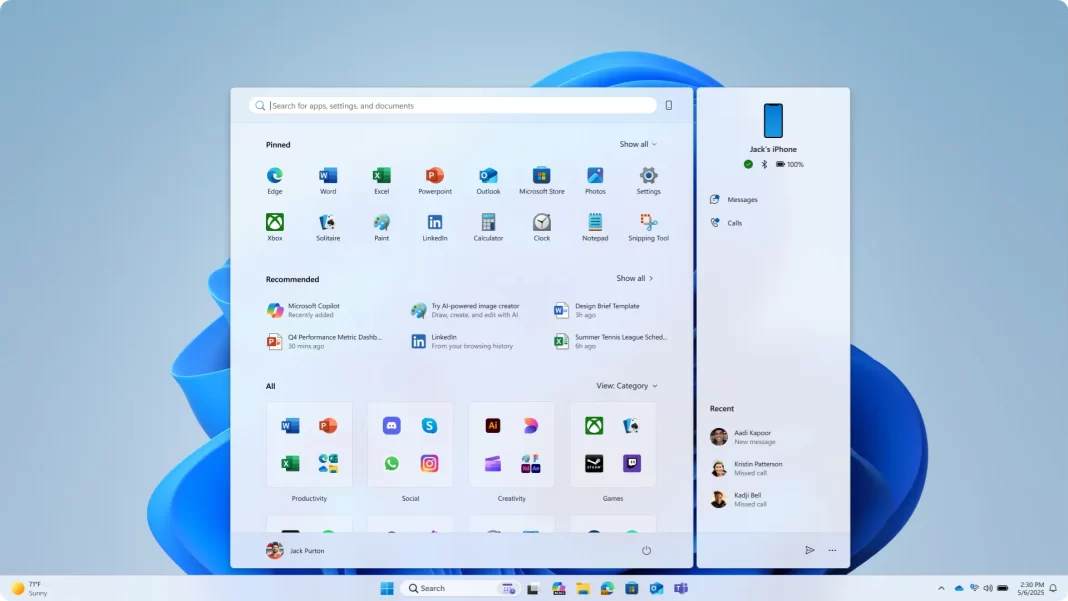
The Windows 11 Start menu is getting its biggest refresh since launch. Versions 24H2 and 25H2 merge pinned apps, All apps, and recommendations into one continuous Start. You also get new app layouts, a roomier grid on large screens, tighter controls for recommendations, and a Phone Link sidebar. Rollout is gradual, with enablement flags for early testers.
Table of Contents
What changed in the Start menu
One scrollable Start that merges Pinned, All apps, and Recommended
Previously, Start split your world into three stops. Now it is a single, scrollable view that keeps your flow intact. No more bouncing between pages to find an app or a recent file. It saves clicks and makes better use of screen space, especially on desktops.
New “All apps” views: List, Grid, Category
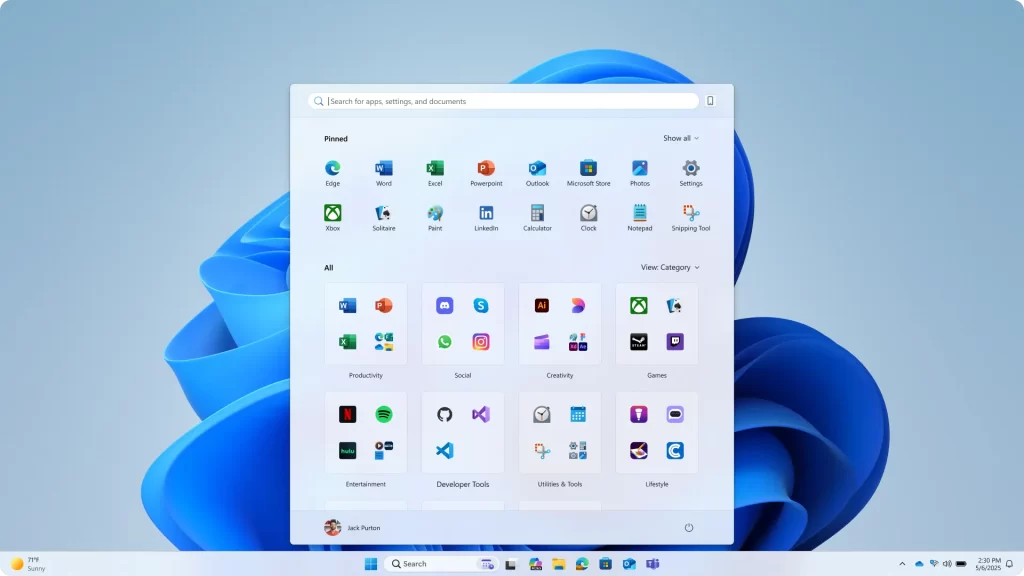
“All apps” is no longer one-size-fits-all. You can swap between:
- List for the classic alphabetical view
- Grid for a horizontal, tile-like layout
- Category that auto-groups by themes like Productivity, Communication, Creativity, and Games
Category view is handy when you have dozens of apps, though you cannot yet create your own categories or move apps between them manually. The system decides once it detects enough apps per category.
Larger layout on big screens, cleaner on small ones
Start scales with your display. On larger monitors you can see up to eight app columns or four app groups per row. Laptops and tablets keep a compact layout so things still feel reachable.
Control and privacy
How to hide recommendations and recent items
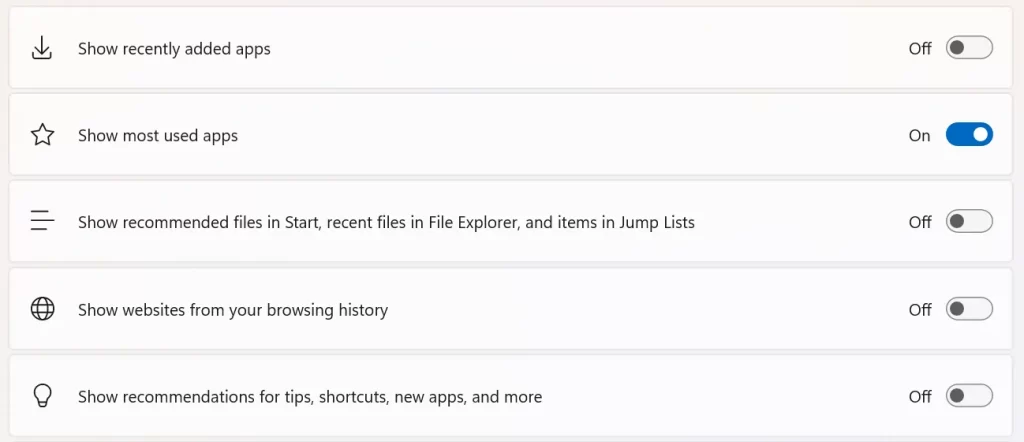
Many folks never warmed to the Recommended feed. You can now selectively turn off items under Settings → Personalization → Start. Switch off options like Show recently added apps, Show recommended files, Show websites from browsing history, and similar toggles to trim the feed or hide it entirely.
Pinning behavior and “Show all pins by default”
If you keep lots of pinned apps, Start can expand automatically so you see everything at once. Toggle Show all pins by default to avoid that extra click on “Show all.” It is a small change that saves time day to day.
Phone Link comes to Start
What you can do from the sidebar
A new Start sidebar ties into Phone Link. You can glance at messages and calls, pull in photos, and send files to your phone without opening a separate window. It works with Android and iPhone.
Where to turn it on
Look for Show mobile device in Start Menu in Start settings. You can also toggle a small icon to the right of the Start search bar to keep the panel handy or hide it when you want a minimalist look.
Known limits and early bugs
Because Microsoft is still rolling this out, a few builds show quirks. Some testers report the view name sticking to “List” even if the layout changes after a reboot. Others see odd or empty categories. Touch gestures like swipe up may feel inconsistent, and drag-and-drop is limited to certain areas. Expect fixes as 25H2 approaches general availability.
How to get it now
Staged rollout, enablement package
The new Start ships via an enablement package. That means the pieces arrive in servicing updates and Microsoft flips them on for more people over time, sometimes via A/B tests. Even after installing 25H2, you might not see it immediately.
Optional ViveTool method and cautions
If you are comfortable with unsupported tweaks, ViveTool can turn on the new Start today in Insider builds using feature IDs that Microsoft is testing. Example: vivetool /enable /id:47205210,49221331,49381526,49402389,49820095,55495322 then restart. This is unofficial and may cause glitches, so proceed only if you accept the risk.
Windows 11 Start menu Old vs New comparison
| Area | Old Start (23H2) | New Start (24H2/25H2) |
|---|---|---|
| Structure | Separate Pinned, All apps, Recommended | Single scrollable canvas |
| All apps | Alphabetical list only | List, Grid, Category views |
| Pinned density | 3 rows typical | Up to 8 columns on big screens |
| Recommendations | Fixed block | Can selectively disable elements |
| Phone integration | Separate Phone Link app | Optional Start sidebar |
| Rollout | Static per version | Enablement + staged A/B rollout |
Mini case study: A week with the new Start on a 27-inch monitor
On a 2560×1440 display, the wider grid made a bigger difference than expected. With “Show all pins by default” on, I could launch work apps with one click and still scroll to All apps without losing context. Category view helped me find rarely used creative tools. I kept recommendations off to limit distraction and used the Phone Link panel only when transferring photos. It felt like Start finally scaled to the screen rather than forcing a one-size layout.
Frequently Asked Question
When will everyone get the new Start?
Microsoft is rolling it out gradually with enablement flags tied to 24H2/25H2. Timing varies by device and channel.
Can I customize categories in All apps?
Not yet. Category view is system-controlled.
How many app icons can Start show per row?
Up to eight columns on large screens.
Is Recommended gone for good?
You can hide its elements via toggles, which addresses most complaints without removing it entirely.
Is ViveTool safe?
It is unofficial. Expect bugs and be ready to revert.
Where is the Phone Link toggle in Start?
Settings → Personalization → Start → Show mobile device in Start Menu.
Featured Answer Boxes
What is new in the Windows 11 Start menu?
A unified, scrollable Start that merges pinned apps, All apps, and recommendations, plus new All apps views (List, Grid, Category), larger layouts on big screens, and a Phone Link sidebar.
How do I turn off recommendations in Start?
Go to Settings → Personalization → Start. Toggle off items like Show recently added apps, Show recommended files, and Show websites from browsing history.
How do I enable the new Start menu early?
Join Windows Insider and, if needed, use ViveTool with the current feature IDs, then restart. This is unsupported and may be unstable.
Does the new Start work with iPhone and Android?
Yes. Phone Link integration in Start supports Android and iPhone for messages, calls, photos, and file sharing.

