

Essential Points
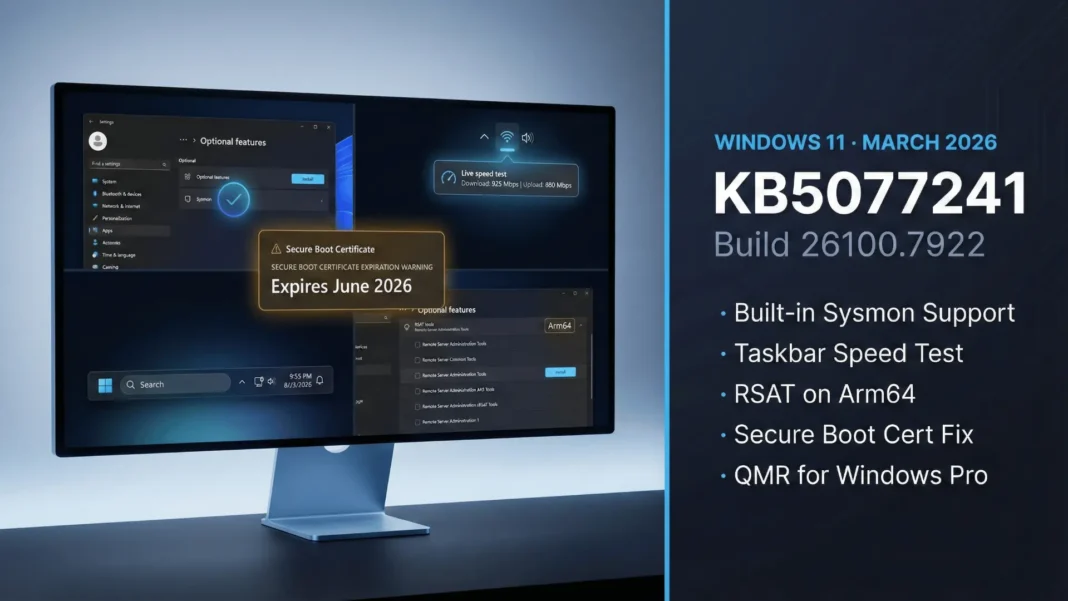
- Built-in Sysmon ships as a native optional Windows feature for the first time, ending over a decade of manual Sysinternals installation
- Secure Boot certificates issued in 2011 expire starting June 2026; unpatched devices will lose secure boot continuity
- A network speed test now launches directly from the taskbar’s Wi-Fi or network system tray icon
- RSAT gains full Windows 11 Arm64 support, enabling Active Directory and DNS management tools on Arm hardware
Microsoft released KB5077241 on February 24, 2026, as a non-security optional preview update for Windows 11 versions 24H2 and 25H2, advancing OS builds to 26100.7922 and 26200.7922. This is the preview release for the March 10, 2026 Patch Tuesday rollout, and the changes inside span enterprise security infrastructure, IT administration tools, system recovery, and everyday desktop usability. Here is a complete, verified breakdown of every confirmed change and what each one demands from you before it reaches all devices next month.
The Security Deadline Affecting Every Windows Device Since 2012
Secure Boot certificates used by most Windows devices are set to expire starting June 2026. After that deadline, affected devices will lose the ability to install Secure Boot security updates, will stop trusting third-party software signed with new certificates, and by October 2026 will no longer receive security fixes for the Windows Boot Manager.
The three expiring certificates are the Microsoft Corporation KEK CA 2011, Microsoft Corporation UEFI CA 2011, and Microsoft Windows Production PCA 2011. Each has a corresponding 2023 replacement certificate that devices must receive before the expiration window opens.
KB5077241 addresses this directly. Windows quality updates in this release include additional high-confidence device targeting data, expanding the pool of devices eligible to automatically receive new Secure Boot certificates. Devices receive the new certificates only after demonstrating sufficient successful update signals, maintaining a controlled and phased rollout.
Copilot+ PCs released in 2025 are not affected. All other physical and virtual machines running Windows 10, Windows 11, or Windows Server editions back to 2012 require action before June 2026.
Built-In Sysmon: A Decade-Long Gap Finally Closed
Sysmon, the advanced system monitoring tool previously distributed through the Sysinternals package, is now a native optional Windows feature starting with KB5077241. It is off by default and requires manual activation before logging any activity.
Two activation paths are available. The first is through Settings: navigate to Settings > System > Optional Features > More Windows Features, then select Sysmon. The second is via an elevated PowerShell or Command Prompt using Dism /Online /Enable-Feature /FeatureName:Sysmon, followed by running sysmon -i to complete setup.
One critical prerequisite: if you previously installed Sysmon from the Sysinternals package, you must uninstall it before enabling the built-in version, as running both simultaneously causes conflicts. Sysmon logs process creation events, network connections, and file system changes using customizable configuration files that let you filter exactly which events to track.
Speed Test Now Built Into the Windows Taskbar
Starting with builds 26200.7922 and 26100.7922, the taskbar introduces a built-in network speed test. You launch it from the Wi-Fi or Cellular Quick Settings panel, or by right-clicking the network icon in the system tray. The test opens in your default browser and measures Ethernet, Wi-Fi, and cellular connections, making it easier to evaluate performance and diagnose connectivity issues without installing a third-party app.
This feature is not documented on the official Microsoft KB support page but is independently confirmed by PureInfoTech from the official changelog.
Quick Machine Recovery Expands to Windows Pro
Quick Machine Recovery (QMR) now activates automatically on Windows Professional devices that are not domain-joined and not enrolled in enterprise endpoint management. These devices now receive the same automated recovery protections previously available only to Windows Home users.
For domain-joined or enterprise-managed devices, QMR stays off unless the organization explicitly enables it. This design preserves IT department control while extending self-healing recovery to standalone Pro machines used by freelancers, consultants, and small businesses.
RSAT Now Runs Natively on Windows 11 Arm64
Remote Server Administration Tools gains full support for Windows 11 Arm64 devices with this update. IT administrators can now install and use the following tools natively on Arm hardware:
- Active Directory Domain Services and Lightweight Directory Services Tools
- Active Directory Certificate Services Tools
- Server Manager
- Group Policy Management Tools
- DNS Server Tools
- DHCP Server Tools
Install them through Settings > System > Optional Features, or via Control Panel > Programs > Turn Windows Features On or Off. This closes a meaningful gap for organizations deploying Arm64 devices in enterprise environments.
Windows Backup for Organizations: First Sign-In Restore
The first sign-in restore experience is now part of Windows Backup for Organizations, extending this capability to more device types. User settings and Microsoft Store apps restore automatically at first sign-in on Microsoft Entra hybrid joined devices, Cloud PCs, and multi-user environments.
This feature streamlines device refreshes, operating system upgrades, and organizational migrations by eliminating manual reconfiguration. IT teams managing large-scale device transitions benefit most from this addition.
Start Menu, Microsoft Entra ID, and Accounts
The account menu on the Start menu now includes a new option linking directly to the Microsoft account benefits page, making it easier to explore and manage account benefits from within Windows.
Microsoft Entra ID gains group and role SID resolution support with this update. The system can now translate Entra cloud group and role security identifiers into readable names, allowing Entra-only groups to appear correctly in file permissions, local group memberships, and other access-control scenarios without requiring on-premises or hybrid Active Directory identities.
Taskbar, Widgets, and Desktop
The taskbar overflow behavior receives a practical fix. When the taskbar is set to uncombined mode and an app has multiple windows open, only the windows that do not fit the available space move to the overflow area. Previously, all windows from an app moved as a group, leaving the overflow menu with wasted empty space.
Widget Settings now open as a full-page experience inside the Widgets app instead of appearing as a dialog box, giving users more screen space for managing preferences, especially on smaller displays.
WebP images can now be set as your desktop wallpaper directly through Settings > Personalization > Background, or by right-clicking any WebP file in File Explorer. This removes the format conversion step that has affected designers and content creators working in WebP-first workflows.
Windows Search Improvements
Three targeted improvements arrive for Windows Search.
- The Task Manager icon for the search process now displays a magnifying glass for clearer identification
- Group headers in search results now show the number of results, making it easier to spot when more items are available
- You can now preview results by hovering over an item and selecting “Preview” to see content without opening it
File Explorer, Storage Settings, and Camera Controls
File Explorer receives three verified improvements. First, holding Shift and selecting the File Explorer icon on the taskbar, or using the middle mouse button, now reliably opens a new File Explorer window instead of switching to the existing one. Second, an “Extract all” option now appears in the command bar when browsing non-ZIP archive folders. Third, reliability for displaying devices on the Network page in File Explorer has improved.
Storage Settings receives a modern design update for several dialogs to match the Windows 11 design language, along with improved scanning performance for temporary files.
Camera pan and tilt controls now appear under Settings > Bluetooth & Devices > Cameras for supported hardware, listed in the “Basic settings” section for your selected camera.
Emoji 16.0 and AI Components
Emoji 16.0 support arrives in the emoji panel with a curated set of new symbols including face with bags under eyes, fingerprint, leafless tree, root vegetable, harp, shovel, and splatter. Each new emoji reflects timeless symbolism and practical versatility, drawn from Unicode Consortium guidelines.
Four on-device AI components update to version 1.2602.1451.0 exclusively for Copilot+ PC users: Image Search, Content Extraction, Semantic Analysis, and Settings Model. These components do not install on standard Windows PCs or Windows Server.
Performance and Reliability Fixes
KB5077241 delivers targeted reliability and performance improvements across core system areas.
- BitLocker: Devices no longer stop responding after entering a recovery key
- Display: Improved reliability when a PC wakes from sleep; reduced resume time on heavily loaded systems and docked laptops resuming with lid closed on AC power
- Printing: Reduced slowdowns in the Windows printing service (spoolsv.exe) during high-volume print jobs
- Nearby Sharing: Improved reliability when sending larger files
- Projecting: Fixed an issue where the project menu failed to appear after pressing Windows logo key + P
- Windows Update Settings: Improved responsiveness of the Windows Update settings page
- Sign-in and Lock screens: Improved overall sign-in screen reliability
- Visual consistency: Fixes for taskbar auto-hide behavior, Windows Security credential prompts, and the print dialog
Comparison: KB5077241 vs. KB5077181
| Feature | KB5077181 (Feb 10 Security) | KB5077241 (Feb 24 Preview) |
|---|---|---|
| Release type | Cumulative security update | Non-security optional preview |
| Stable channel rollout | February 10, 2026 | March 10, 2026 |
| New features | None | Sysmon, Speed Test, RSAT Arm64, QMR for Pro, and more |
| Secure Boot cert delivery | Standard | Expanded device targeting data |
| AI component version | 1.2601.x | 1.2602.1451.0 |
| RSAT Arm64 support | No | Yes |
| WebP wallpaper support | No | Yes |
| Known issues | None stated | None stated |
Considerations and Limitations
KB5077241 carries no known issues as of February 25, 2026. Several features including the redesigned Start menu and updated battery icon remain in gradual rollout and will not appear on all devices simultaneously. Sysmon is off by default and requires deliberate manual configuration, meaning passive users gain no security monitoring benefit without active setup. Secure Boot certificate delivery is phased, and devices must demonstrate sufficient successful update signals before receiving new certificates. The speed test feature, while confirmed by PureInfoTech from the official changelog, is absent from the Microsoft support page and may reach devices through controlled feature rollout rather than immediately after installation.
How to Install KB5077241
Go to Settings > Windows Update > Advanced Options and enable “Get the Latest Updates as Soon as They’re Available.” For offline or enterprise deployment, download the .msu package from the Microsoft Update Catalog and apply it using DISM from an elevated command prompt, or import it into Windows Server Update Services (WSUS). This update includes companion Servicing Stack Update KB5077371 (Build 26100.7911), which installs automatically alongside the main package.

Frequently Asked Questions (FAQs)
What is Windows 11 KB5077241?
KB5077241 is a non-security optional preview update released February 24, 2026, for Windows 11 versions 24H2 and 25H2, advancing OS builds to 26100.7922 and 26200.7922. It is the preview release for the March 10, 2026 Patch Tuesday rollout, delivering new features and reliability improvements ahead of the stable channel deployment.
How do I install KB5077241?
Go to Settings > Windows Update > Advanced Options and turn on “Get the Latest Updates as Soon as They’re Available.” For offline deployment, download the .msu file from the Microsoft Update Catalog and apply it using DISM or the Windows Update Standalone Installer from an elevated command prompt. Enterprise teams can import it into WSUS.
What is the Secure Boot certificate expiration and how does it affect my device?
Secure Boot certificates issued in 2011 begin expiring in June 2026. Devices without the updated 2023 replacement certificates will lose the ability to install Secure Boot security updates and will stop receiving Windows Boot Manager security fixes by October 2026. KB5077241 expands automatic delivery of new certificates to more eligible devices through a phased rollout.
What does built-in Sysmon do and how do I enable it?
Sysmon logs detailed system activity including process creation, network connections, and file system changes using customizable configuration files. Enable it through Settings > System > Optional Features > More Windows Features, or via Dism /Online /Enable-Feature /FeatureName:Sysmon followed by sysmon -i. If you have the Sysinternals version installed, uninstall it first.
Does Quick Machine Recovery now work on Windows 11 Pro?
Yes. KB5077241 enables Quick Machine Recovery automatically on Windows 11 Pro devices that are not domain-joined and not enrolled in enterprise management. Domain-joined or enterprise-managed devices keep QMR off unless the organization explicitly enables it.
Which devices are affected by the Secure Boot certificate expiration?
Physical and virtual machines running Windows 10, Windows 11, or Windows Server editions dating back to 2012 are affected. Copilot+ PCs released in 2025 are not affected. Devices with Secure Boot disabled cannot receive certificate updates until Secure Boot is re-enabled.
What are the AI components updated in KB5077241?
Image Search, Content Extraction, Semantic Analysis, and Settings Model all update to version 1.2602.1451.0. These components apply exclusively to Copilot+ PCs and will not install on standard Windows PCs or Windows Server.
What does RSAT on Arm64 mean for IT administrators?
IT administrators can now install Active Directory, DNS, DHCP, Group Policy, and Server Manager tools natively on Windows 11 Arm64 devices. Install through Settings > System > Optional Features or Control Panel > Programs > Turn Windows Features On or Off. No x64 workaround is needed.

