

Essential Points
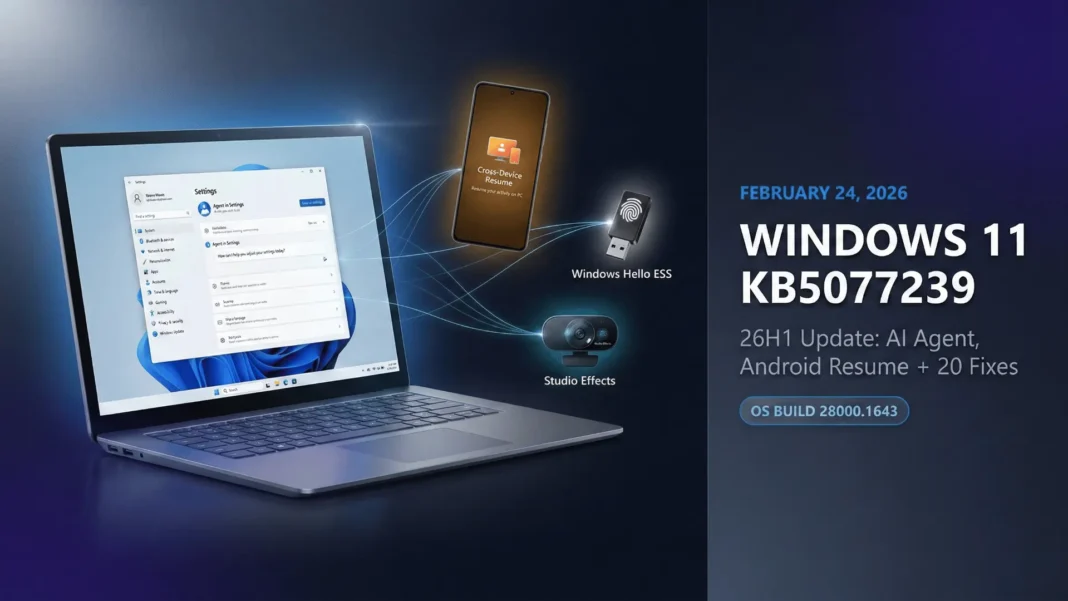
- Agent in Settings debuts on Copilot+ PCs, enabling AI-driven system configuration for the first time
- Cross-Device Resume now supports Spotify handoff and Copilot mobile file continuation from HONOR, OPPO, Samsung, Vivo, and Xiaomi Android devices
- Windows Hello Enhanced Sign-in Security now extends to peripheral USB fingerprint sensors beyond built-in laptop sensors
- Windows Studio Effects gains support for USB webcams and built-in rear laptop cameras in this update
Microsoft shipped KB5077239 on February 24, 2026, as the first non-security preview feature drop for Windows 11 version 26H1 since the build launched. This update targets Copilot+ PC users for AI features, while delivering reliability, accessibility, and quality improvements that apply to every Windows 11 26H1 device. These features become mandatory for all eligible users with the next March Patch Tuesday security rollup, per Microsoft’s standard update pipeline.
Agent in Settings: Windows 11 Gets Its First AI Configuration Layer
The headline addition for Copilot+ PCs is Agent in Settings, a new AI-powered assistant embedded directly inside the Windows Settings app. Rather than searching through nested menus, users can describe what they want to configure, and the agent surfaces the correct options or executes the change. This is the first time an agentic AI model has been integrated at the OS settings layer in a shipping Windows build.
Microsoft has not disclosed the full scope of supported commands at launch. Availability is limited to Copilot+ PCs and will vary by device and market during the gradual rollout phase.
Windows Studio Effects Now Works on USB Webcams and Rear Cameras
Windows Studio Effects, the suite of AI-powered camera enhancements, now extends beyond the front-facing camera to support USB webcams and the laptop’s built-in rear camera. To enable it, go to Settings > Bluetooth and Devices > Cameras, select your preferred camera from the connected cameras list, open Advanced camera options, and turn on Use Windows Studio Effects. Once active, Studio Effects can be adjusted from the camera settings page or the quick settings menu in the taskbar.
This is a practical expansion for content creators, remote workers, and professionals who rely on external cameras for video calls or recording.
Cross-Device Resume Gets Broader Android Support
Cross-Device Resume now supports a wider range of activities and Android manufacturers, including HONOR, OPPO, Samsung, Vivo, and Xiaomi. Users can resume Spotify playback, continue working in Word, Excel, or PowerPoint, or pick up a browsing session on their PC from where they left off on their Android phone.
Vivo users additionally gain the ability to resume browsing sessions from Vivo Browser on the PC. Users with a compatible Android phone can also resume online Microsoft 365 files opened in the Copilot mobile app, which then open in the corresponding desktop app if installed, or in the default browser if not. This feature does not support offline files stored only on the phone.
Click to Do: Faster Access to Screen Actions
The Click to Do context menu receives a streamlined redesign in this update. Common actions such as Copy, Save, Share, and Open now appear in a single organized menu, reducing the steps required for frequent operations. When a large image or table appears on screen, the context menu opens automatically so users can act without initiating it manually.
This feature targets Copilot+ PC users and its availability varies by device and market.
Share With Copilot Added to Taskbar
A new Share with Copilot option appears in the taskbar in this update, enabling users to start a Copilot Vision conversation directly from any app. Copilot Vision analyzes the content shared from the active app and provides contextual insights based on what is currently displayed on screen.
This is a gradual rollout feature, and availability varies by device and market.
Desktop Spotlight Gets Two New Context Menu Options
When Windows Spotlight is set as the desktop background via Settings > Personalization > Background, the right-click context menu now includes two new options: “Learn more about this background” and “Next desktop background.” These additions let users explore the origin of the current spotlight image or rotate to a new one without navigating through Settings.
Virtual Workspaces Toggle Added to Advanced Settings
A new Virtual Workspaces toggle is now available in Settings > System > Advanced. This setting lets users enable or disable virtual environments such as Hyper-V and Windows Sandbox from a single, centralized location. Previously, managing these environments required navigating through separate control paths.
Windows Hello ESS Now Works With USB Fingerprint Readers
Previously, Windows Hello Enhanced Sign-in Security (ESS) required a fingerprint sensor built into the device. This update extends ESS support to peripheral fingerprint readers connected to desktops and other Windows 11 PCs, including Copilot+ PCs. To get started, plug in a supported ESS fingerprint reader, go to Settings > Accounts > Sign-in options, and follow the enrollment prompts.
ESS provides stronger protections by isolating biometric data within dedicated hardware, a security layer previously unavailable to desktop users.
Windows MIDI Services Overhaul
KB5077239 delivers a significant upgrade to Windows MIDI Services, adding full MIDI 1.0 and MIDI 2.0 support with built-in translation between the two standards. Key additions include shared MIDI ports across apps, custom port names, loopback and app-to-app MIDI routing, and a suite of performance improvements and bug fixes.
The App SDK and Tools package that enables inbox MIDI 2.0 features, including MIDI Console and the MIDI Settings app, is a separate download available on the Windows MIDI Services landing page and GitHub. Note that these packages are currently unsigned and may trigger a security warning during download or installation.
Accessibility Upgrades: Narrator, Voice Access, and Voice Typing
Narrator now lets users control which on-screen control details are announced and in what order. This per-app customization reduces unnecessary speech output and makes screen reader navigation less cognitive-intensive for experienced users.
Voice Access receives a redesigned setup wizard that walks through speech model download, microphone selection, and feature orientation in a single flow. Voice Typing adds a new “Wait time before acting” setting that lets users adjust the pause before a voice command executes, improving recognition accuracy for varied speech patterns and speaking speeds.
File Explorer: New Features and Reliability Fixes
Several File Explorer improvements ship with this update. A simplified context menu is rolling out to a small group of devices initially, consolidating common actions like Share, Copy, and Move into a single organized menu accessible via mouse, keyboard, or assistive technology. The “Show Recommended” section toggle in File Explorer Options is now available to all users, including those signed in with personal Microsoft accounts.
Reliability also improves: File Explorer loads faster when browsing network locations, and desktop icons stay in their positions when opening or renaming files on the desktop. Two additional fixes address video thumbnails failing to display for files with certain EXIF metadata, and a toolbar appearing unexpectedly in File Explorer. A fix also corrects a bug where right-clicking a file showed a generic app icon instead of the correct default app icon next to the Open option.
Mobile Device Settings and Settings App Updates
A new Mobile Device Settings page is now available under Settings > Bluetooth and Devices > Mobile Devices. Users can manage connected mobile devices from this page, including using a phone as a connected camera or accessing the device’s files directly in File Explorer.
The Settings “About” page receives an updated layout that organizes device details and related options in one place, with a new shortcut to Storage settings for faster navigation. The Settings search bar no longer overlaps the Minimize and Maximize buttons in the title bar, and navigating to Settings > Network and Internet no longer causes the app to become unresponsive.
Windows Share Drag Tray Supports Multi-File Sharing
The Windows Share drag tray now supports multi-file sharing, displays more relevant apps, and allows users to move files to a chosen folder. Users can also toggle the drag tray on or off from Settings > System > Nearby sharing. Additionally, OneDrive files can now be shared through other apps via the Copy link option, which requires signing in with a Microsoft account. Note that the OneDrive sharing option is not available in the European Economic Area.
Gaming: Full Screen Experience and Display Fixes
The Full Screen Experience (FSE), launched first on the ASUS ROG Ally and ROG Ally X, now extends to additional Windows 11 handheld devices. FSE presents a console-style Xbox interface that minimizes background tasks, keeping gameplay smooth and responsive. To enable it, go to Settings > Gaming > Full screen experience and set Xbox as the home app. FSE can also be accessed from Task View or Game Bar, or configured to launch on startup.
Two display reliability fixes also ship with this update. Performance improves when apps query monitors for their full list of supported modes, reducing momentary stutter on high-resolution monitors. A separate fix addresses a bug where certain games incorrectly displayed the message “Unsupported graphics card detected” despite a supported graphics card being present.
Start Menu, Taskbar, and Lock Screen Improvements
For users with the new Start menu, the Windows Search panel now matches the Start menu in size, creating a smoother transition when searching. Three taskbar reliability improvements also ship: the “Automatically hide the taskbar” setting no longer turns off unexpectedly, Voice Access responds more reliably when interacting with taskbar items, and taskbar icons now maintain their expected size when sufficient space is available.
Lock screen reliability also improves. The update includes underlying changes that help address cases where the lock screen could become unresponsive.
Additional Fixes in KB5077239
- Windows Insider Program join process now prevents the setup from getting stuck when initiated through Settings > Windows Update
- Explorer.exe no longer stops responding on first sign-in when certain startup apps are configured, which could prevent the taskbar from appearing
- First-time sign-in for new accounts on the lock or sign-in screen is now significantly faster
- Lock screen slide show memory leak that could degrade performance over time is resolved
- Keyboard character repeat delay labels now display correctly in Settings > Bluetooth and Devices > Keyboard
- Smart Card ECC-based logon no longer returns STATUS_NOT_SUPPORTED (0xc00000bb) during sign-on
- Windows Sandbox no longer stops responding at startup with error 0x800705b4
- BitLocker: device no longer stops responding after entering a recovery key
- UAC fix: Windows Terminal running as administrator from a non-admin account no longer causes the PC to become unresponsive
- Windows license migration now completes correctly during upgrades without requiring the Activation troubleshooter
- Brightness slider on all-in-one PCs now holds the chosen level and avoids unexpected changes
- Game Pass references in Settings now reflect updated branding and benefits
AI Component Versions Updated
This release updates four on-device AI components exclusively on Copilot+ PCs. These components do not install on standard Windows 11 PCs or Windows Server.
| AI Component | Updated Version |
|---|---|
| Image Search | 1.2601.1268.0 |
| Content Extraction | 1.2601.1268.0 |
| Semantic Analysis | 1.2601.1268.0 |
| Settings Model | 1.2601.1268.0 |
How to Install KB5077239
This is an optional preview update delivered through Windows Update. Go to Settings > Windows Update and select “Check for updates,” then look for the optional update labeled KB5077239.
For enterprise or offline deployments, the standalone MSU package is available through the Microsoft Update Catalog. To apply the update to a running PC, use DISM or Windows Update Standalone Installer (wusa.exe) from an elevated command prompt. To add it to a mounted image, use DISM with the /Add-Package switch.
Limitations and Considerations
Several features in this update operate under a gradual rollout and will not appear on all devices immediately. Agent in Settings, Click to Do enhancements, Windows Share drag tray improvements, and some File Explorer changes are gated by device and market. Copilot+ PC-exclusive features will not function on standard Intel or AMD hardware that does not meet the NPU threshold requirement. The OneDrive file sharing option via Windows Share is not available in the European Economic Area.

Frequently Asked Questions (FAQs)
What devices are eligible for KB5077239?
KB5077239 applies to Windows 11 version 26H1 (OS Build 28000.x). Full AI features such as Agent in Settings and updated Click to Do are limited to Copilot+ PCs. All Windows 11 26H1 devices receive the bug fixes, accessibility improvements, and reliability updates included in the package.
What is the difference between KB5077239 and KB5077241?
KB5077239 targets Windows 11 version 26H1 (Build 28000.1643). KB5077241 applies to Windows 11 versions 25H2 and 24H2 (Builds 26200.7922 and 26100.7922). Both released on February 24, 2026, but 26H1 is currently limited to specific Copilot+ hardware while 25H2 and 24H2 serve the broad Windows 11 user base.
Will these features become mandatory?
Yes. Per Microsoft’s standard update pipeline, the features staged in this optional preview will be included in the next March 2026 Patch Tuesday security rollup for all eligible Windows 11 26H1 devices. Devices that skip the February preview will receive all changes automatically at that point.
Does Cross-Device Resume work with iPhones?
No. Cross-Device Resume in KB5077239 is limited to Android devices from HONOR, OPPO, Samsung, Vivo, and Xiaomi. iPhone and iOS devices are not supported. The feature also only works with online files accessed through the Microsoft Copilot mobile app, not offline local files stored solely on the phone.
Is Agent in Settings available in India?
Availability of Agent in Settings varies by device and market and is rolling out gradually. India is not listed among excluded regions in the official release notes. Copilot+ PC users in India may receive the feature during the gradual phase before the next Patch Tuesday enforces broad availability.
What is Windows Hello ESS and why does it matter?
Windows Hello Enhanced Sign-in Security (ESS) isolates biometric data in dedicated hardware for a more tamper-resistant authentication path compared to standard Windows Hello. Before this update, ESS required a built-in fingerprint sensor. KB5077239 extends support to external USB fingerprint readers, opening ESS to desktop PC users for the first time.
Does KB5077239 include security patches?
This is classified as a non-security preview update. The February 2026 security patches were delivered on Patch Tuesday via a separate update. KB5077239 focuses on new features and quality improvements that will be incorporated into the next monthly security rollup.
Can I uninstall KB5077239 after installing it?
You can remove the LCU component using the DISM /Remove-Package command with the LCU package name as the argument, found via DISM /online /get-packages. Running wusa.exe with the /uninstall switch will not work on the combined package because the Servicing Stack Update (SSU) component cannot be removed after installation.

