

Key Takeaways
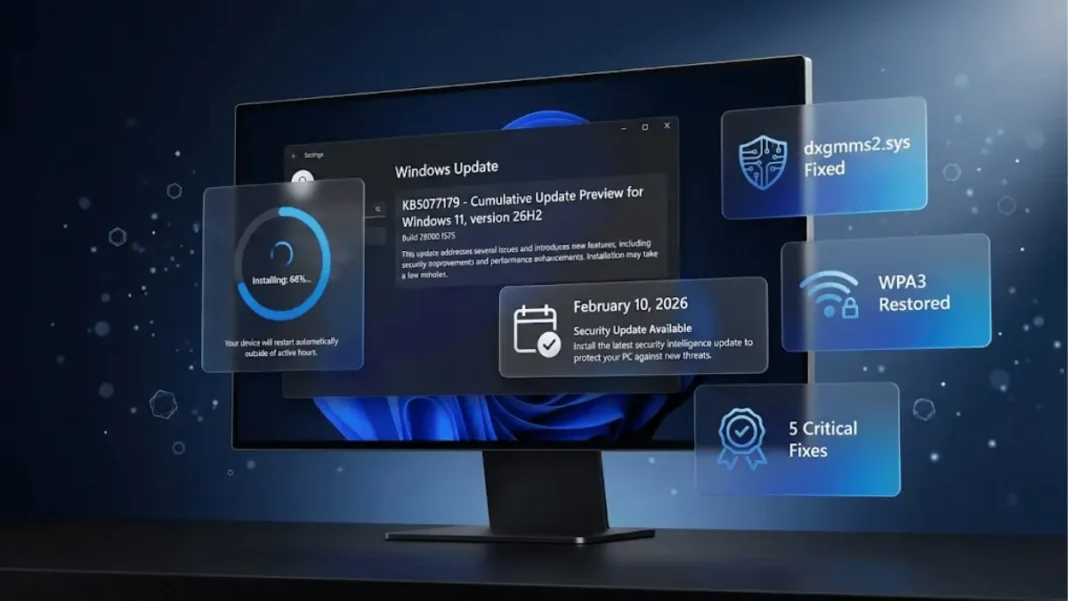
- KB5077179 eliminates KERNEL_SECURITY_CHECK_FAILURE crashes linked to dxgmms2.sys GPU driver conflicts
- WPA3-Personal Wi-Fi connectivity restored for devices experiencing authentication failures
- .NET Framework 3.5 removed from Windows Feature on Demand requires standalone installer starting February 2026
- Update includes fixes for TrustedInstaller boot failures and BitLocker HLK test restoration
Microsoft delivered KB5077179 on February 10, 2026, addressing system-halting GPU errors and network connectivity issues in Windows 11 version 26H1. This cumulative security update targets five critical areas: graphics stability, network authentication, system boot reliability, framework installation changes, and BitLocker testing. The update installs automatically through Windows Update for eligible devices running Windows 11 26H1.
What Windows 11 KB5077179 Fixes
Graphics: GPU Crash Resolution
Microsoft addressed a system error where certain GPU configurations recently experienced crashes related to dxgmms2.sys, resulting in KERNEL_SECURITY_CHECK_FAILURE blue screens. This DirectX graphics kernel subsystem issue forced unexpected reboots on affected configurations. The fix stabilizes the DirectX Graphics Memory Management System across various GPU setups.
How to verify the fix:
After installing KB5077179, Windows Event Viewer should show zero Critical events related to dxgmms2.sys in the System log. Users who previously disabled hardware acceleration to avoid crashes can now re-enable it through their graphics settings.
Networking: WPA3 Wi-Fi Authentication Restored
The update resolves an issue that prevented some devices from connecting to certain WPA3-Personal secured networks. Affected devices experienced persistent authentication failures when attempting to establish secure connections. KB5077179 restores compatibility with WPA3’s Simultaneous Authentication of Equals (SAE) protocol, eliminating connection errors.
OS Reliability: Boot Process Improvements
Microsoft resolved two system stability issues:
- TrustedInstaller hang: Fixed a critical bug that could cause TrustedInstaller to stop responding and prevent Windows from starting
- BitLocker HLK tests: Restored missing BitLocker Hardware Lab Kit tests in the Windows Hardware Compatibility Program playlist
These fixes ensure reliable system startup and proper BitLocker certification testing for device manufacturers.
.NET Framework 3.5 Installation Change
Starting with Windows 11 version 26H1, .NET Framework 3.5 is no longer a Windows Feature on Demand optional component. Users requiring .NET Framework 3.5 must install it using the standalone installer available at go.microsoft.com/fwlink/?linkid=2348700. This change affects enterprise applications and legacy software built on .NET 3.5 architecture.
Windows 11 26H1 Build 28000.1575 Details
| Component | Specification |
|---|---|
| Update KB Number | KB5077179 |
| OS Build | 28000.1575 |
| Release Date | February 10, 2026 |
| Windows Version | 26H1 |
| Servicing Stack | KB5077868 (28000.1575) |
AI Components Updated
KB5077179 includes updated AI processing modules:
- Image Search: Version 1.2511.1224.0
- Content Extraction: Version 1.2511.1224.0
- Semantic Analysis: Version 1.2511.1224.0
- Settings Model: Version 1.2511.1224.0
These components enhance Windows 11’s local AI features including live caption accuracy, voice typing responsiveness, and Windows Copilot query processing.
How to Install KB5077179
Automatic installation:
Windows Update delivers KB5077179 automatically to eligible Windows 11 26H1 devices. Navigate to Settings > Windows Update > Check for updates. The combined servicing stack update (SSU KB5077868) and cumulative update install together in a single operation.
Manual installation options:
- Microsoft Update Catalog: Download KB5077179 standalone package from catalog.update.microsoft.com for manual installation
- Windows Server Update Services (WSUS): Enterprise administrators can deploy through WSUS infrastructure
- Business Catalog: Commercial organizations access updates through Windows Update for Business
The update requires one system restart to complete installation.
Who Should Install This Update
Priority installation recommended for:
- Users experiencing GPU crashes: Systems displaying KERNEL_SECURITY_CHECK_FAILURE errors related to dxgmms2.sys require immediate installation
- WPA3 network users: Devices unable to connect to WPA3-Personal Wi-Fi networks
- Enterprise environments: Organizations requiring BitLocker HLK test compliance for device certification
- .NET 3.5 developers: Teams needing clarity on framework installation procedures
All Windows 11 version 26H1 users should install KB5077179 to receive security improvements and system stability enhancements.
Security Improvements in February 2026 Patch Tuesday
KB5077179 addresses security vulnerabilities documented in Microsoft’s February 2026 Security Update Guide. The update includes important security improvements for Windows 11 version 26H1, strengthening protection against potential exploits. Microsoft’s security baseline for this update incorporates fixes from quality improvements released in optional preview updates from January 2026.
What security enhancements does KB5077179 include?
KB5077179 contains security updates for Windows kernel components, cryptographic libraries, and network stack implementations. The update addresses vulnerabilities discovered in Windows 11 26H1 systems. Microsoft combined this month’s security fixes with reliability improvements from previous optional preview releases.
Known Issues and Limitations
Microsoft is not currently aware of any issues with KB5077179 as of February 10, 2026. The Windows release health dashboard shows normal deployment status. The update requires no workarounds or mitigation steps.
Rollback procedure:
Users experiencing post-installation problems can uninstall KB5077179 using DISM command-line tool:
DISM /online /get-packagesDISM /online /remove-package /packagename:[KB5077179 package name]
Important: The Windows Update Standalone Installer (wusa.exe) with /uninstall switch will not remove KB5077179 because the combined SSU/LCU package protects the servicing stack from removal.
Installation Methods Comparison
| Method | Best For | Access Point |
|---|---|---|
| Windows Update | Individual users and automatic deployment | Settings > Windows Update |
| Microsoft Update Catalog | Manual download and offline installation | catalog.update.microsoft.com |
| WSUS | Enterprise IT administrators | WSUS console |
| Windows Update for Business | Commercial organizations | Azure portal or Intune |
Frequently Asked Questions (FAQs)
What does KB5077179 fix in Windows 11?
KB5077179 fixes GPU crashes caused by dxgmms2.sys errors, restores WPA3 Wi-Fi connectivity, prevents TrustedInstaller boot failures, and restores BitLocker HLK tests. The update also changes .NET Framework 3.5 installation requirements for Windows 11 version 26H1.
How do I fix dxgmms2.sys blue screen errors?
KB5077179 eliminates dxgmms2.sys KERNEL_SECURITY_CHECK_FAILURE crashes automatically. Install the update through Windows Update by navigating to Settings > Windows Update > Check for updates. The fix applies to certain GPU configurations experiencing this system error.
Why can’t I install .NET Framework 3.5 through Windows Features anymore?
Microsoft removed .NET Framework 3.5 from Windows Features on Demand starting with Windows 11 26H1. Download and use the standalone installer from Microsoft’s official link at go.microsoft.com/fwlink/?linkid=2348700 to install .NET 3.5 on systems running build 28000.1575 or later.
Is KB5077179 a mandatory security update?
KB5077179 contains important security updates for Windows 11 26H1 systems. Windows Update installs it automatically unless Group Policy or manual update control is configured. Microsoft recommends installing all security updates to maintain system protection.
What is the servicing stack update included with KB5077179?
KB5077868 is the servicing stack update (SSU) that installs alongside KB5077179. The SSU improves the update installation process reliability. Both updates are installed together in a combined package, and the SSU cannot be removed separately.
Does KB5077179 work on Windows 11 23H2 or 24H2?
No. KB5077179 is specifically designed for Windows 11 version 26H1 (Build 28000.1575). Other Windows 11 versions receive separate cumulative updates with their own KB numbers through Windows Update.
How do I check if KB5077179 installed successfully?
Navigate to Settings > Windows Update > Update history. KB5077179 appears in the list of successfully installed updates. You can also verify the OS build number by pressing Windows key + R, typing “winver”, and confirming Build 28000.1575 displays.
Can I uninstall KB5077179 if problems occur?
Yes. Use the DISM command-line tool to remove KB5077179. Run “DISM /online /get-packages” to find the package name, then execute “DISM /online /remove-package /packagename:[package name]”. The Windows Update Standalone Installer (wusa.exe) method will not work due to SSU protection.

