

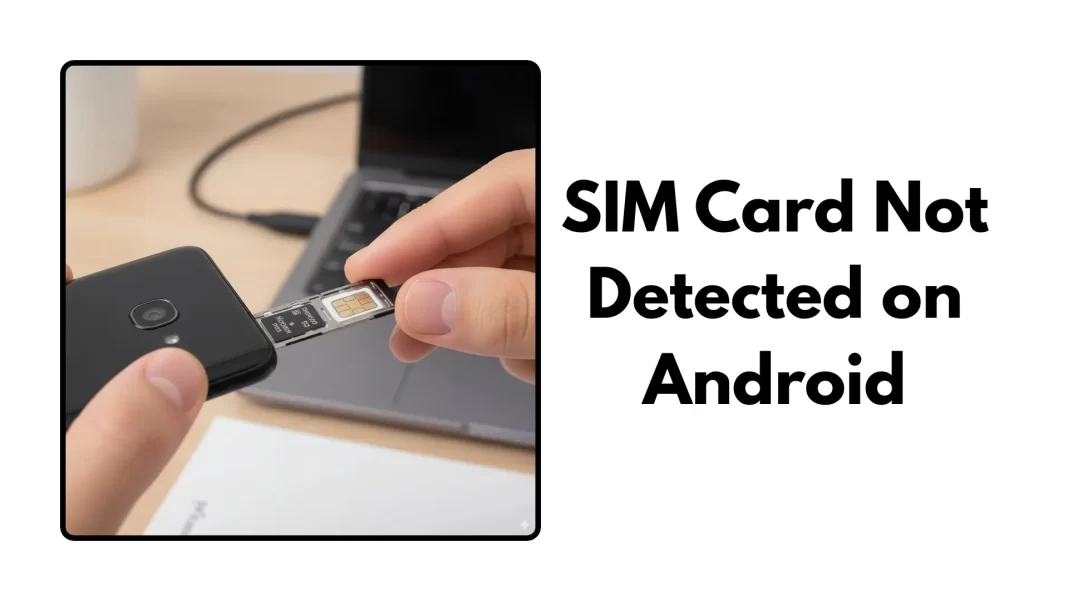
Short answer: Turn Airplane Mode on and off, reboot, reseat the SIM with the gold contacts facing down in the right slot, clean contacts with a dry lint-free cloth, and reset Settings → System → Reset options → Reset mobile network settings. If the SIM still isn’t detected, test with another SIM or contact your carrier to reprovision or replace the card.
Why your Android says “No SIM”
Android shows “No SIM” when the phone cannot read a valid subscriber identity from the card or eSIM profile. That can be:
Physical reasons: dirt on contacts, bent tray, misaligned nano-SIM, or a worn card. Official support pages call out reseating and cleaning as first line checks.
Software reasons: a stuck modem process after an update, incorrect network settings, or a mismatch in network mode. Resetting network settings and updating the device often clears it.
Carrier reasons: brand-new SIMs or port-in numbers sometimes show “SIM not provisioned MM#2” until the carrier activates them. If the error persists, you may need activation or a replacement SIM.
Step by step fixes follow in order
1) Toggle Airplane Mode, then reboot
Turn Airplane Mode on for 10 seconds, then off, and restart the phone. This resets the cellular radio without changing your data. Many carriers recommend this as a first reset.
2) Reseat the SIM with correct alignment
Power off. Eject the tray and check card orientation. Look for the tiny notch and the printed diagram near the slot. Reinsert smoothly so the SIM sits flat, not floating. Samsung’s guide lists reseating as a key step.
Signs of a bad tray: the SIM moves in the slot, or the tray does not sit flush. If the tray is cracked or bent, replace it before testing further.
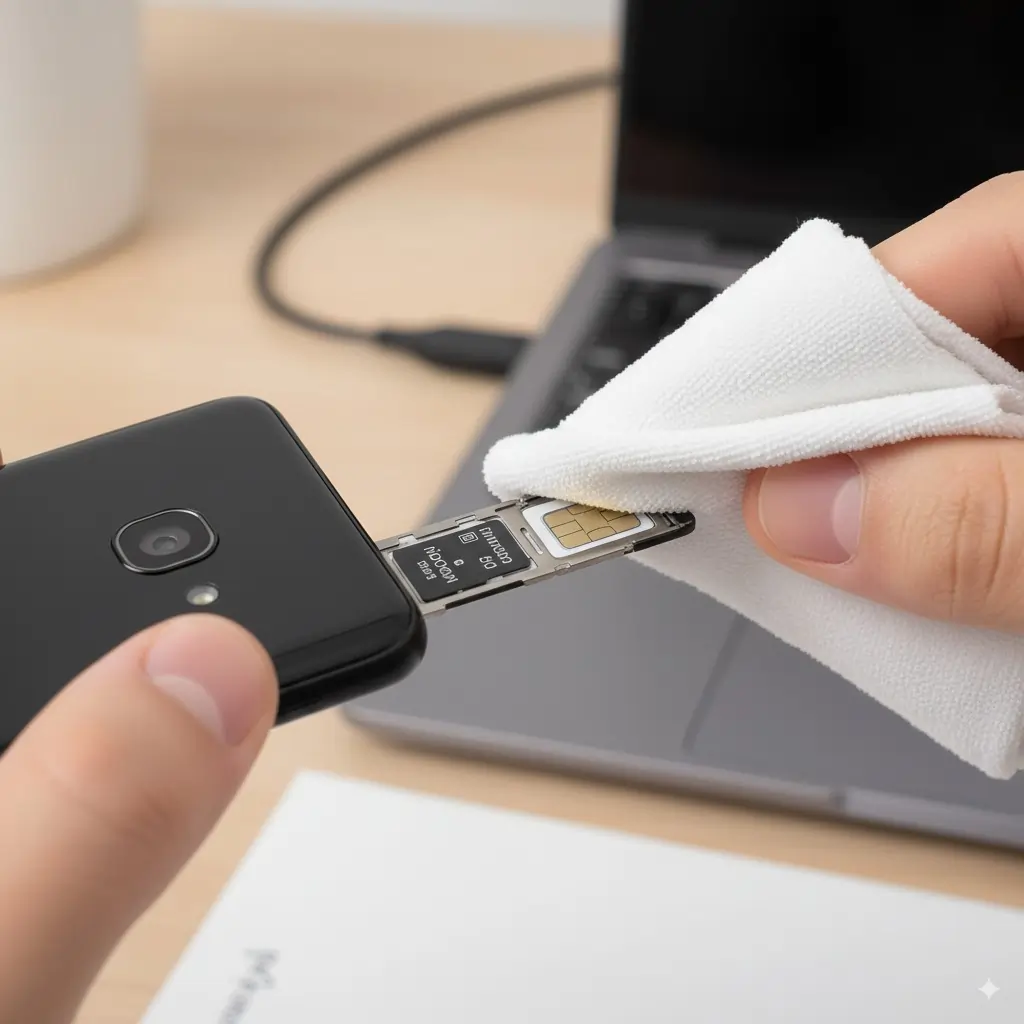
3) Clean the contacts gently
Use a clean, dry, lint-free cloth. Wipe the gold contacts in one direction. Do not soak the SIM. If there’s visible grime, lightly dab with a dry swab. Verizon notes cleaning and reseating as common fixes.
4) Rule out the SIM or the phone
- Put your SIM in a different, unlocked phone.
- Put a known-working SIM from a friend or family member into your phone.
If your SIM fails in both phones, replace it. If every SIM fails in your phone, move to software steps or service.
5) Reset network settings (Android path)
This restores mobile, Wi-Fi, and Bluetooth network settings. On most Pixels: Settings → System → Reset options → Reset mobile network settings. You will need to re-enter Wi-Fi passwords.
6) Update Android and carrier components
Check for system updates. Updates often include modem and carrier configuration fixes. On Pixel phones, Google documents network resets and updates as standard steps.
7) Manually select the network and switch 5G/4G
Go to Settings → Network & Internet → SIMs → Preferred network type. If you are on the edge of coverage, forcing 4G/LTE can stabilize registration. Some users report fewer drops after turning 5G off temporarily while testing. (This is a practical test, not a permanent fix.)
8) Check IMEI/EID and SIM status
Your carrier may ask for IMEI (physical SIM) or EID (for eSIM). On Pixel: Settings → About phone → IMEI and About phone → SIM status → EID. You can also dial *#06# to display identifiers.
9) Contact your carrier (India)
- Airtel: use app or support to check activation and provisioning; their guides cover reseating and reset steps.
- Jio: live chat and troubleshoot pages for SIM and network registration issues.
- Vi: similar path via the Vi app or web support (not linked here; follow your plan’s support section).
Explain your tests so far. Ask them to reprovision or issue a replacement SIM if needed.
10) When to replace the SIM or tray
Replace the SIM if: the plastic is cracked, the gold surface is worn or pitted, or it fails in another phone. Replace the tray if it is bent, loose, or does not sit flush. Carriers and OEMs list replacement as the final step if resets fail.

eSIM vs physical SIM: what changes in troubleshooting
Some recent phones in certain regions are moving to eSIM-only. If your device has no physical slot, you’ll need to download or transfer an eSIM profile from your carrier, then ensure it is activated. On newer Pixels in select markets, eSIM is the default experience. If you see “No SIM,” check that the eSIM plan is installed and turned on, then contact your carrier to reprovision.
eSIM checks:
- Verify your phone is unlocked for the carrier.
- Confirm the EID with the carrier if activation fails.
- Turn roaming on only if you are traveling and your plan supports it.
Mini case studies
Case 1: The dusty tray fix (Mumbai, Airtel prepaid).
Phone showed “No SIM” after a beach trip. Reseating didn’t help. A dry lint-free wipe of the contacts plus a fresh tray solved it. The SIM worked in another phone, which ruled out provisioning. Cleaning and tray replacement are standard recommendations.
Case 2: New number, “SIM not provisioned MM#2” (Delhi, Jio).
New nano-SIM kept showing the error. Airplane Mode toggle and reboot didn’t help. Jio support reprovisioned the number, and service came up within minutes. This is typical of brand-new or ported SIMs.
Case 3: Post-update glitch, fix via network reset (Bengaluru, Pixel).
After an update, phone intermittently showed “No SIM.” Network settings reset plus a full reboot restored registration. Google lists network resets and updates as standard recovery steps.
Pitfalls to avoid
- Don’t scrape or sand the SIM contacts.
- Don’t bend the tray by forcing it in.
- Don’t download random “repair tools.” Stick to OEM or carrier guidance.
- Don’t edit or change IMEI. That is illegal in many countries and will not fix SIM detection.
When to visit a service center
If your SIM and tray are fine, network resets and updates failed, and another known-good SIM still shows “No SIM” in your phone, the reader pins or baseband hardware may be faulty. At that point, visit an authorized service center for your brand. Official guides route you to service when reseating, cleaning, resets, and updates fail.
Comparison: eSIM vs physical SIM for troubleshooting
| Factor | Physical SIM | eSIM |
|---|---|---|
| Hardware | Needs tray and reader | No tray, profile is digital |
| Common failure points | Dirt, misalignment, worn contacts, bent tray | Activation/provisioning errors, wrong EID |
| Quick checks | Reseat, clean, try in another phone | Reinstall plan, toggle line on/off, reprovision |
| What carrier needs | IMEI, SIM ICCID | IMEI, EID, QR or activation code |
| When to replace | Damaged SIM or tray | Ask carrier to delete and re-add eSIM profile |
Featured Snippet (Q → A)
Q: How do I fix “No SIM” on Android fast?
A: Toggle Airplane Mode, reboot, reseat the SIM with correct alignment, clean contacts, then reset Settings → System → Reset options → Reset mobile network settings. If still failing, test another SIM or call your carrier to reprovision or replace.
Q: What does “SIM not provisioned MM#2” mean?
A: The SIM is not active on the network yet. This happens with new or ported numbers. Ask your carrier to activate or reprovision, or swap the SIM if activation fails.
Q: Will a factory reset fix “No SIM”?
A: Usually you don’t need it. Try reseating, cleaning, network reset, and updates first. Only factory reset if support instructs you and you have a full backup.
Q: How do I find IMEI or EID for support?
A: Go to Settings → About phone → IMEI and About phone → SIM status → EID. You can also dial *#06# to view identifiers.
FAQ
- Why does my Android say “No SIM” even with a SIM inside?
Misalignment, dirt, a damaged tray, outdated settings, or a not-yet-activated SIM can trigger it. Start with reseating, cleaning, and a network reset. - How do I reset network settings?
On Pixel and many Android phones: Settings → System → Reset options → Reset mobile network settings. You’ll re-enter Wi-Fi passwords after. - Does turning off 5G help?
Sometimes. If registration is flaky at the edge of 5G, switch to 4G/LTE while testing. Bring 5G back once stable. - What if my SIM works in another phone?
Your tray or reader may be the issue. Replace the tray first. If that fails, seek service. - Can an eSIM show “No SIM”?
Yes. Make sure the eSIM plan is installed and active. Your carrier can reprovision if activation failed. - What does “Emergency calls only” mean?
Your phone can reach emergency services but is not registered on your carrier. Check SIM seating, network selection, and provisioning. - Should I update Android before or after troubleshooting?
Update early. Many fixes ride along with system updates and carrier configs. - When should I replace the SIM?
If it is physically damaged or fails in another phone after resets, ask for a replacement.
Source: Verizon | Samsung | Google Help

