

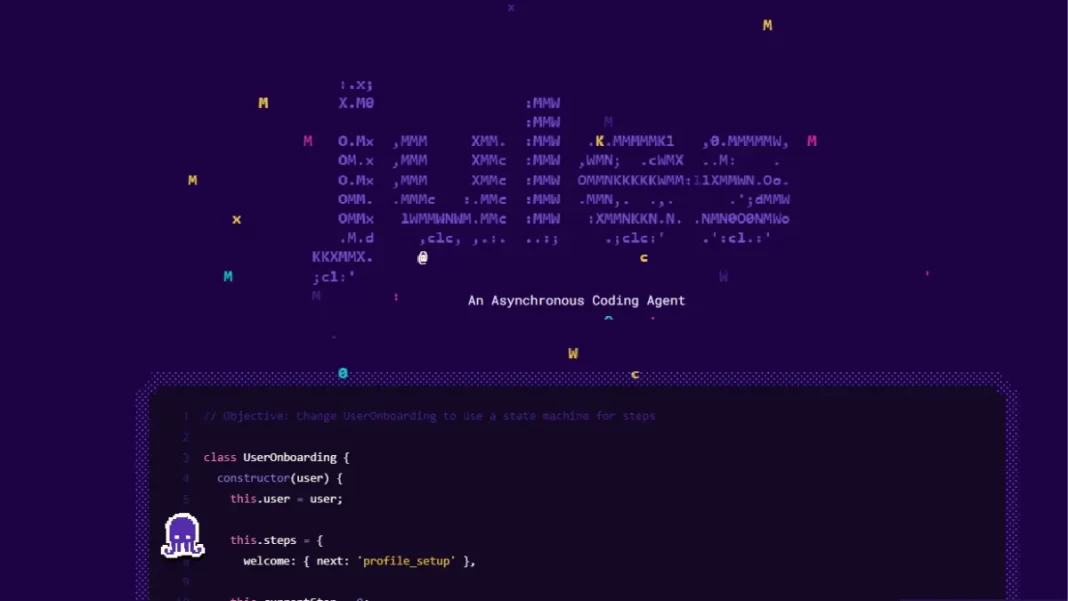
Most AI coding tools live in your IDE. Helpful, but easy to forget when you’re already knee-deep in a terminal session or shepherding a CI run. Jules Tools brings Google’s autonomous coding agent into your command line so you can kick off tasks, review status, and keep shipping without tab-hopping. Below, we’ll cover what it is, how to install it, where it shines, and how it stacks up against Gemini CLI and GitHub Copilot CLI.
Table of Contents
What is Jules Tools?
Jules Tools is a lightweight command-line interface (CLI) for interacting with Jules, Google’s asynchronous coding agent. You can start and manage tasks from your terminal, wire it into scripts, and integrate it with build pipelines. Jules itself can clone your repo to a secure VM, plan changes, run tests, and open pull requests for review.
Key Features at a Glance
- Terminal-native control: List remote tasks, check status, and nudge work along without leaving the shell.
- Customizable interface: Handy flags (including themes) so it feels at home in your setup.
- API-ready workflows: With the Jules API, teams can plug the agent into CI/CD, chat tools, and custom dashboards.
- Fits your GitHub flow: Jules already knows how to branch, diff, and PR. The CLI simply brings that power closer to where you work.
Short Answer: Jules Tools is Google’s CLI for its async coding agent. Install it, authenticate, and you can start, list, and manage agent tasks from your terminal. It’s built for automation: scriptable commands, early API access, and clean GitHub integration so you can keep coding while Jules handles background work.
Installation and First Run (HowTo)
Prerequisites
- Node.js and npm installed
- A Jules account connected to your GitHub repo
- Terminal access on macOS, Linux, or Windows
Install via npm
npm install -g @google/jules
Try a basic command
jules remote list --task
If you see your remote tasks, you’re set. Add --help to explore commands, or run jules --theme light to switch terminal theme.
Real-World Use Cases
1) Dependency bumps across a monorepo
You’ve got multiple packages lagging a major version. From your terminal, kick off a Jules task to plan and apply upgrades, run tests, and open PRs for each package. While it churns, you keep coding a feature branch. When Jules is done, review diffs and merge.
2) Batch bug fixes during a release crunch
Create a task queue for a known class of errors. Jules hunts them down, writes fixes, and keeps tests green. You manage progress from the CLI, pausing and resuming as your release window shifts.
3) Docs and tests on autopilot
Ship a feature and hand Jules a follow-up task: generate docs and add missing unit tests. It runs in the background while your CI pipeline builds, and you review the PR when you have a minute.
Jules Tools vs Gemini CLI vs GitHub Copilot CLI
How they think and work
- Jules Tools: Operates an asynchronous agent that plans and executes multi-step tasks in a cloud VM, then opens a PR. You delegate, it works in the background.
- Gemini CLI: A general-purpose assistant in the terminal. Great for interactive help, research, code edits, and scripting with large context windows.
- GitHub Copilot CLI: A synchronous terminal assistant tied tightly to GitHub. Strong for “right now” tasks in your local environment.
Best tool for the job
- Large, sweeping changes (framework upgrades, broad refactors): Start with Jules Tools to delegate and review.
- Interactive problem-solving (shell tasks, quick code snippets, research): Use Gemini CLI.
- GitHub-centric local work (explain code, small fixes, terminal chat): Copilot CLI fits well.
Comparison Table
| Capability | Jules Tools | Gemini CLI | Copilot CLI |
|---|---|---|---|
| Primary mode | Async agent (plans, runs, PRs) | Interactive assistant | Interactive assistant |
| Best for | Big, multi-step tasks | Research + code + scripts | Local GitHub workflows |
| CI/CD & API | Strong with Jules API | Scriptable, MCP-friendly | GitHub integrations |
| Terminal UX | Task-centric commands | Chat + commands | Chat/commands in terminal |
| Review flow | PR-first | Your choice | GitHub-first |
Pros and Cons
Pros
- Terminal-native control of a true async agent
- Clean GitHub pull-request flow
- Script-friendly; early API unlocks CI/CD automation
Cons
- Requires trust in background changes; code review discipline is a must
- New toolchain surface to secure and standardize
- Async style can feel “hands-off” if you prefer pair-programming
Pricing, Availability, and Roadmap
Jules Tools and the Jules API are rolling out now alongside the existing web and GitHub integrations. Expect rapid iteration as Google expands integrations and enterprise hooks. Check the official blog and product pages for updates on access tiers and feature changes.
Common Questions
Is Jules Tools free?
A free on-ramp exists for getting started with Jules, and Google continues to evolve plans. Check the latest details before rollout.
Does it work without GitHub?
Jules is GitHub-first today. If you’re on GitLab or Bitbucket, watch the API roadmap and announcements.
Can I use it in CI?
Yes. The Jules API is designed for integration into CI/CD and chat tools. Start small with read-only tasks, then expand.
Will it replace my IDE assistant?
Not likely. Think of Jules Tools as the “delegate big jobs” button, while IDE and terminal assistants handle interactive work.
The Bottom Line and Next Steps
If you spend half your day in a terminal and want an AI agent that can plan, execute, test, and PR in the background, Jules Tools is worth a spin. Install it, point it at a repo, delegate a task you’d normally batch, and review the PR when it lands.
Frequently Asked Questions (FAQs)
Is Jules Tools IDE-agnostic?
Yes. It runs from your terminal and works alongside any editor.
Does Jules change code locally or in the cloud?
Jules runs in a secure cloud VM and opens PRs for you to review.
Can I set themes or customize output?
Yes. Use flags like --theme and --help to discover options.
What repos are supported?
GitHub repos today, with more possibilities via API over time.
How do I control risk?
Use branch protections, required reviews, CI gates, and staged rollouts.
Is there logging or auditability?
Review PRs, diffs, and task logs; pipe outputs to your observability tools via API.
Will Jules write tests and docs?
It can generate tests and docs as part of task plans you approve.
Does it support Slack or Teams notifications?
Via API and workflow integrations; watch for official connectors.
Glossary
- Async agent: An AI worker that runs tasks without constant back-and-forth.
- CLI: Command-line interface.
- MCP: Model Context Protocol, a way to connect tools and context to models.

Featured Snippet Boxes
What is Jules Tools?
It’s Google’s command-line interface for the Jules async coding agent. You can start and manage agent tasks from your terminal, wire it into scripts, and review results as pull requests.
How do I install Jules Tools?
A: Install Node.js, then run npm install -g @google/jules. Authenticate, connect GitHub, and use jules remote list --task to verify.
How is Jules Tools different from Copilot CLI?
Jules Tools drives an asynchronous agent that plans and executes multi-step jobs in the background. Copilot CLI is a synchronous assistant for interactive terminal tasks.
Can Jules Tools run in CI/CD?
Yes. The Jules API is designed for automation and integration with pipelines and chat tools.

