

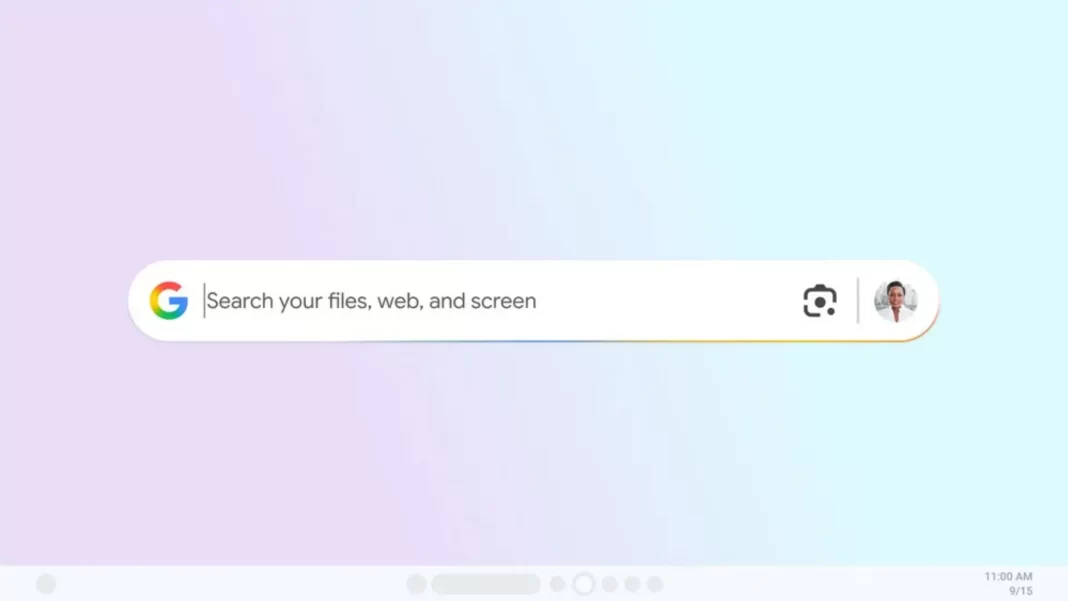
Finding a file shouldn’t take a detective. Google’s new AI app for Windows drops a Spotlight-style search bar on your desktop. Hit Alt+Space and you can search local files, installed apps, Google Drive, and the web in one go. You also get Google Lens on your PC screen and an AI Mode for longer, step-by-step answers. It’s a Labs experiment for now, so there are limits but the direction is clear.
What is the Google AI app for Windows?
An experimental Search Labs app that puts a floating launcher on your PC. Press Alt+Space to search local files, installed apps, Google Drive, and the web. It bakes in Google Lens and an AI Mode for deeper responses. U.S., English-only at launch.
What it does
One bar for “anything.” Type a filename, an app name, or a question. Results are grouped by This PC, Google Drive, and Web, with tabs to pivot into AI, Images, Shopping, or Videos when useful. Think macOS Spotlight, but with Google’s web graph and Lens stitched in.
Lens on your screen. Select part of your display text in a PDF, a diagram, a product photo and run a Lens search to translate, identify, or explain. That’s handy for quick translations or pulling data from locked down docs and images.
AI Mode when you need more. Toggle AI Mode inside the app to ask multi-step questions and get synthesized answers with links to dig further. It’s the same AI Mode Google has been rolling out across Search and the Google app. In India, AI Mode itself is already widely available in Search. The Windows app isn’t yet.
Availability and limits
At launch, the app is English-only, U.S.-only, and requires Windows 10 or 11. You need a personal Google account; Workspace accounts aren’t supported in the test. Access is via Search Labs and space is limited.
India status: An experimental AI Mode in Search is live in India, but the Windows desktop app hasn’t rolled out here. We’ll track it and update this guide when Google expands regions.
Quick start: install and set up
- Join Search Labs and opt into the Google app for Windows experiment.
- Download and install the app; sign in with your personal Google account.
- Press Alt+Space to launch the floating bar. If PowerToys Run already uses Alt+Space, change one of them to avoid clashes. (PowerToys lets you remap its shortcut.)
- Optional: Enable AI Mode and test Lens by dragging a box over anything on your screen.
Real-world examples
Find that invoice fast. Type “invoice July” and check the This PC group for a PDF on your desktop, then flip to Drive for cloud copies. If the PDF is open, box-select a line of text with Lens to copy a customer ID.
Translate a screenshot. Select a WhatsApp screenshot with Lens, then tap Translate. It’s quicker than hopping between apps.
Go deeper with AI Mode. Ask “Summarize this PDF’s key dates” after selecting a paragraph. Follow up with “Create a to-do list for renewal steps.” Expect links when the answer draws from the web.
Google AI App vs Copilot, Spotlight, PowerToys Run, Everything
| Tool | Local file search | Web search | Cloud (Drive) | Screen selection (Lens) | AI answers | Shortcut default | OS / availability |
|---|---|---|---|---|---|---|---|
| Google AI App (Windows) | Yes | Yes | Google Drive | Yes (Lens) | AI Mode | Alt+Space | Windows 10/11, U.S., Labs |
| Windows Copilot | Limited direct file surfacing | Yes (Bing) | Microsoft 365 context | Screen actions vary | Yes | Alt+Space now used in newer builds | Windows 10/11 |
| macOS Spotlight | Yes | Yes (Siri suggestions) | iCloud context | No Lens | No | Cmd+Space | macOS |
| PowerToys Run | App launcher; plugins for files | No native web | No | No | No | Alt+Space (default) | Windows 10/11 |
| Everything (Voidtools) | Blazing-fast file index | No | No | No | No | Custom | Windows |
Which one should you use?
- If you live in Google’s world (Drive, Lens, Search) and want one bar for PC + web + Drive, the Google app is compelling—when it reaches your region.
- If you only need lightning-fast local search, Everything still wins.
- If you want a flexible launcher today, PowerToys Run is free and mature.
Privacy and data considerations
- Lens on desktop means selected on-screen pixels may be sent to Google for analysis. Don’t box-select sensitive info. Keep work docs out of scope if policy requires it. (Google hasn’t published a deep privacy whitepaper for this app yet; we’re extrapolating from Lens behavior.)
- AI Mode uses Google’s AI to draft summarized responses with source links. Treat it like the mobile Search experience with AI Overviews/AI Mode.
- For regulated workflows, consider Everything or Windows’ built-in search for strictly on-device lookups.
Troubleshooting & tips
- Alt+Space conflict: Change Google’s shortcut or PowerToys Run’s in Settings.
- Drive not surfacing: Make sure you’re signed into the same Google account you use for Drive.
- No access in India: You can’t officially install the app yet; you can still use AI Mode in Search on mobile/desktop.
Should you switch?
Pros: One place to search PC + Drive + web; convenient Lens selection; AI Mode for longer tasks.
Cons: U.S.-only early access; personal accounts only; privacy questions for sensitive screens; shortcut conflicts until you tweak settings.
FAQ
- How do I install it?
Opt into the experiment in Search Labs, then download the Google app for Windows. - What Windows versions are supported?
Windows 10 or 11. - Does it work with Workspace accounts?
Not in the experiment; it’s personal accounts only. - Can I change the shortcut?
Yes; you can remap it if PowerToys Run already uses Alt+Space. - What’s AI Mode?
Google’s AI interface inside Search that synthesizes answers with links. It’s also rolling out more broadly in Search. - Will it come to macOS?
No announcement yet. We’ll update if Google confirms.
How do I open the Google AI app on Windows?
Press Alt + Space to pop up the floating search bar and type your query. You can also toggle AI Mode or use Lens to select parts of your screen.
Can it search Google Drive and local files at once?
Yes. Results are grouped by This PC, Google Drive, and Web, so you can see matches from all three in one view.
Is it available in India?
Not yet. The Windows app is U.S.-only at launch. AI Mode in Search is available in India.
Does it replace Windows Copilot?
No. It’s a separate launcher. You can use both, though shortcuts may conflict.
Is Lens built in?
Yes. You can select anything on screen to translate, identify, or analyze via Lens.
Source : Blog Google

