

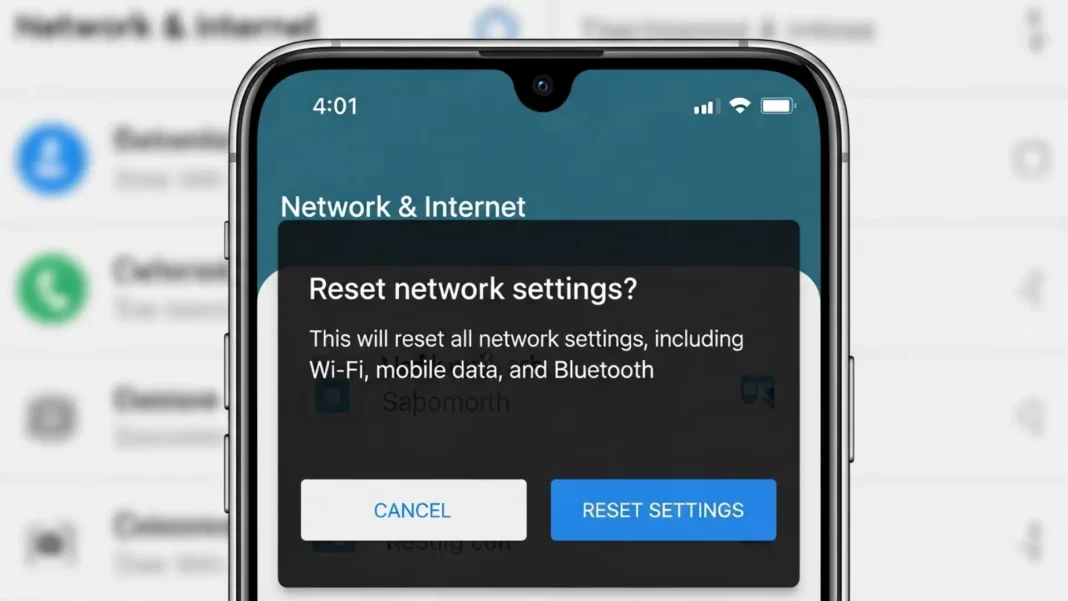
Short answer: “Reset network settings” clears saved Wi-Fi networks/passwords, paired Bluetooth devices, VPN and APN tweaks, and some mobile preferences. It doesn’t erase your photos or apps and doesn’t delete eSIM. Use it when Wi-Fi/Bluetooth/mobile data act up especially after an update or APN change. Steps: Settings → System → Reset options → Reset Wi-Fi, mobile & Bluetooth (Samsung: General management → Reset → Reset network settings).
What happens when you hit that “Reset Network Settings” button?
Wi-Fi, Bluetooth, VPN, APN – what’s wiped and what isn’t
A network reset returns network related settings to defaults. Expect these to be cleared:
- Saved Wi-Fi networks and passwords
- Paired Bluetooth devices (earbuds, watches, cars)
- VPN profiles and APN changes (custom carrier settings)
- Mobile preferences like preferred network type or roaming toggles may revert
What stays: your apps, photos, files, Google account, and general phone data remain untouched.
Does a network reset remove eSIM or data?
No—resetting network settings does not delete your eSIM profile or your personal data. Factory resets may offer a checkbox to erase eSIM; network resets don’t.
Short answer: A network reset wipes Wi-Fi passwords, Bluetooth pairings, VPN profiles, and APN tweaks, then restores defaults. It won’t delete apps, photos, or files, and it doesn’t remove eSIM. Use it for stubborn Wi-Fi/Bluetooth/mobile data issues especially after an update or when APN settings broke. Afterward, re add Wi-Fi/Bluetooth and confirm carrier APN.
When to use it (and when not to)
Use a network reset when:
- Wi-Fi won’t authenticate or keeps dropping, even after forgetting/rejoining.
- Bluetooth behaves oddly across multiple accessories.
- Mobile data breaks after an update or APN changes.
Avoid it (try lighter fixes first) if:
- The issue is clearly router-side (others offline too).
- Only one SSID/accessory fails try forget/unpair first.
- Corporate VPN settings would be hard to recreate.
Decision tip: If multiple radios (Wi-Fi + Bluetooth + mobile data) are flaky at once, reset is often the fastest path.
How to reset network settings on Android
Android 12/13/14/15 (most phones)
- Settings → System → Reset options
- Tap Reset Wi-Fi, mobile & Bluetooth
- Confirm with Reset settings and your PIN
- If prompted on dual-SIM, choose the SIM to reset for mobile data.
Dual-SIM note: Some phones ask which SIM’s mobile network you want to reset; Wi-Fi/Bluetooth reset is global.
Brand specific steps
Google Pixel
Settings → System → Reset options → Reset Wi-Fi, mobile & Bluetooth → Reset settings. On newer Pixels you might also see Reset Bluetooth & Wi-Fi as a separate item.
Samsung (One UI)
Settings → General management → Reset → Reset network settings → Reset settings (enter PIN). On dual-SIM models, pick the SIM first.
Xiaomi/Redmi/POCO (MIUI/HyperOS)
Settings → Connection & sharing → Reset Wi-Fi, mobile networks, and Bluetooth → confirm.
OnePlus (OxygenOS)
Settings → System → Reset options → Reset Wi-Fi, mobile & Bluetooth → Reset settings.
Before you reset: safe checks & backups
- Note your Wi-Fi passwords (or confirm they’re saved to your Google account).
- Screenshot custom VPN/APN pages if you use special configs.
- List critical Bluetooth pairings (car, earbuds, watch) to re pair later.
- Try lighter fixes: restart, Airplane Mode, forget/rejoin network.
After you reset: quick rebuild checklist
- Reconnect Wi-Fi (home and work SSIDs).
- Re-pair Bluetooth (earbuds/car).
- Verify APN auto-provisioning. Most carriers push APN automatically; if not, re add manually. For Jio, APN is JioNet (Settings → Mobile network → APN → JioNet). Vi typically uses www. Airtel offers guides if auto-setup fails.
- Toggle VoLTE/VoWiFi back on if you had them enabled.
- Test hotspot and any VPNs. (Google Fi doc also recommends resets for Wi-Fi issues/hotspot checks.)
Short answer: After a network reset, rejoin Wi-Fi, re-pair Bluetooth, and confirm your carrier’s APN. For Jio, use JioNet if it didn’t auto-provision; Vi often uses www. Then re-enable VoLTE/VoWiFi and test hotspot/VPN as needed.
Alternatives to try first (less drastic)
- Airplane Mode on/off (10 seconds).
- Restart the phone.
- Forget and re add the problem Wi-Fi network.
- Reset only Bluetooth & Wi-Fi (if your OEM splits the options).
- Router troubleshooting (reboot, check bands/channels, firmware).
Comparison table
| Action | What it does | Time | Data lost | When to use |
|---|---|---|---|---|
| Restart | Reboots radios/processes | 1–2 min | None | First try |
| Airplane Mode toggle | Re-registers to cell/Wi-Fi | <1 min | None | Quick network hiccups |
| Reset Wi-Fi & Bluetooth only | Clears Wi-Fi & pairings | 2–3 min | Wi-Fi/Bluetooth saved data | BT/Wi-Fi only issues |
| Reset network settings | Resets Wi-Fi, BT, VPN, APN | 3–5 min | Clears network configs | Multi-radio problems |
| Factory reset | Wipes device | 30–60 min | Everything (unless backed up) | Last resort |
Mini case studies (original insights)
Case 1: Wi-Fi + Bluetooth both flaky after trip
Symptom: Phone won’t auto-connect to home Wi-Fi; car BT drops.
Fix: Reset Wi-Fi & Bluetooth (or full Network Reset if mobile data also weird). Re-pair devices and reconnect SSIDs. Success rate is high because both radios share cached configs that the reset purges.
Case 2: Mobile data died right after an update
Symptom: 4G/5G icon present but no data; calls OK.
Fix: Network reset → verify APN. For Jio, set JioNet if not auto provisioned; for Vi use www; Airtel typically auto configures but user can add manually.
Case 3: Hotspot won’t stay on during travel
Symptom: Hotspot disables itself; Wi-Fi flips off when hotspot is on (device limitation).
Fix: Confirm device supports simultaneous Wi-Fi + hotspot; reset network if prior APN/VPN tweaks cause conflicts; check carrier plan supports tethering.
FAQ
Does reset network settings delete my eSIM?
No. Network resets do not delete eSIM profiles. Factory resets may offer an option to erase eSIMs; network resets won’t.
Will I lose photos, apps, or texts?
No. Only network configurations are cleared (Wi-Fi, Bluetooth, VPN, APN). Your files and apps remain.
Where is the option on Samsung phones?
Settings → General management → Reset → Reset network settings.
What about Pixels?
Settings → System → Reset options → Reset Wi-Fi, mobile & Bluetooth (or Reset Bluetooth & Wi-Fi on some builds).
Xiaomi/Redmi path?
Settings → Connection & sharing → Reset Wi-Fi, mobile networks, and Bluetooth.
Do I need to redo APN?
Usually it auto-provisions. If not, re-add manually (e.g., JioNet on Jio; www on Vi).
Glossary
- APN (Access Point Name): the gateway settings your phone uses to reach your carrier’s data network.
- eSIM: a digital SIM stored on the device; not deleted by network resets.
- VoLTE/VoWiFi: calling over LTE/Wi-Fi. May need re-enabling after reset.
Limitations & considerations
- If you rely on custom VPN profiles or enterprise Wi-Fi certs, you’ll need to re-import them afterward.
- Some devices split resets (e.g., separate Reset Bluetooth & Wi-Fi vs Reset Mobile Network). Read on-screen text before confirming.
- If issues persist after a network reset, you may be dealing with hardware, a buggy OS build, or carrier provisioning contact OEM/carrier support.
Featured Snippet Q→A
- What does “Reset network settings” do on Android?
It clears saved Wi-Fi networks/passwords, Bluetooth pairings, VPN profiles, and APN tweaks, returning network settings to defaults. It doesn’t erase apps or files. - How to reset network settings on Samsung?
Settings → General management → Reset → Reset network settings → Reset settings (enter PIN). - Will a network reset delete my eSIM?
No. Network resets don’t remove eSIM. Factory resets may offer to erase eSIM; you can usually keep it. - Where’s the option on Pixel phones?
Settings → System → Reset options → Reset Wi-Fi, mobile & Bluetooth → Reset settings. - Do I need to re-enter APN after a reset?
Often it auto-provisions. If not, re-add (e.g., JioNet for Jio; www for Vi).

