

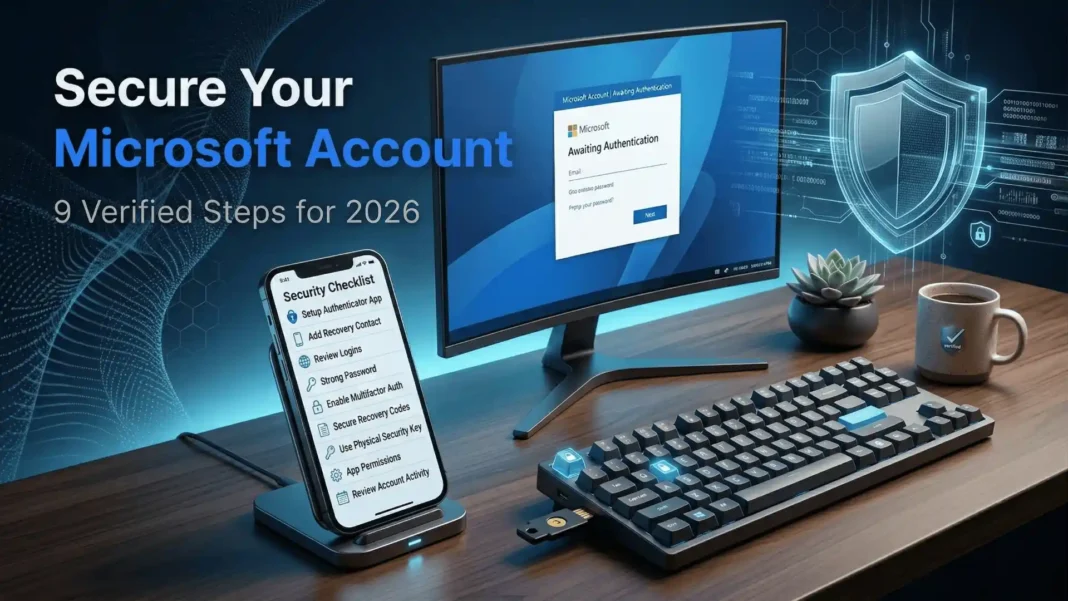
What You Need to Know
- Phishing-resistant MFA blocks over 99% of identity-based attacks, confirmed by Microsoft’s 2025 Digital Defense Report
- Microsoft set passkeys as the default sign-in method for all new accounts starting in 2025, affecting over 1.5 billion users
- Over 97% of identity attacks are password spray or brute force attacks, making strong authentication the single most important defense
- Microsoft analyzes 38 million identity risk detections every single day, showing the industrial scale of account-targeting activity
Your Microsoft account connects your email, OneDrive files, Xbox profile, Windows device, and payment methods under one login. A single compromised password puts all of it at risk. This guide covers nine tested steps to lock down your account, whether you are a casual user in India or a professional working on Microsoft 365 in the US.
Why Microsoft Accounts Are Targeted More Than You Realize
Microsoft accounts are among the most attacked credentials on the internet because one login unlocks so much. Microsoft’s 2025 Digital Defense Report reveals that over 97% of all identity attacks are password spray or brute force attacks — meaning attackers overwhelmingly rely on weak or reused passwords to break in. Microsoft processes over 100 trillion security signals daily and blocks nearly 2 million fake account creation requests every hour, reflecting the sheer industrial scale of automated credential attacks.
The threat landscape shifted significantly in 2025. Attackers are increasingly moving beyond stolen passwords to token theft, OAuth consent phishing, and device code flow abuse, essentially logging into accounts rather than hacking through them. This makes layered identity protection, not just a strong password, the only reliable defense.
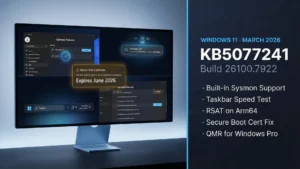
9 Microsoft Account Security Tips
1. Set Up a Passkey – Microsoft Now Does It by Default
The most important change to Microsoft account security in 2026 is the passkey rollout. Microsoft set passkeys as the default sign-in method for all new accounts in 2025, affecting over 1.5 billion users globally. Passkeys use FIDO2 cryptographic standards tied to your physical device or biometrics, eliminating passwords entirely and making phishing attacks technically irrelevant.
Starting March 2026, Microsoft is also auto-enabling passkey profiles in Microsoft Entra ID. If you have not configured your passkey yet, do it proactively: sign in at account.microsoft.com, go to Security, then Advanced security options, and follow the passkey setup flow.
2. Enable Phishing-Resistant MFA If You Keep a Password
If you are not ready to go fully passwordless, enabling MFA is the single most impactful step you can take. Microsoft’s 2025 Digital Defense Report confirms phishing-resistant MFA blocks over 99% of identity-based attacks. The Microsoft Authenticator app provides push notification-based approval that is significantly harder to intercept than SMS codes.
Open Security in your Microsoft account dashboard, select Security info, and add the Microsoft Authenticator app as your default verification method.
3. Replace SMS Codes With an Authenticator App
If you currently use text message codes as your second factor, switch now. SMS-based authentication is vulnerable to SIM-swapping attacks, where an attacker convinces your mobile carrier to transfer your number to a SIM they control. Microsoft formally warned against SMS and voice-based authentication as insufficient security methods. Princeton University researchers found all five major US carriers they tested used authentication practices vulnerable to SIM porting.
Remove your phone number as a sign-in method from Security info in your Microsoft account and replace it with the Microsoft Authenticator app or any OATH TOTP-compatible authenticator.
4. Add at Least Two Recovery Methods
Relying on a single recovery option is the most common reason people lose permanent access to their accounts. Set up multiple verification paths in the following order of security strength:
- Microsoft Authenticator app as the primary method
- A backup authenticator app such as Authy or Google Authenticator on a second device
- A verified alternate email address that itself has MFA enabled
- A FIDO2 hardware security key such as a YubiKey for maximum phishing resistance
Each layer covers a different failure scenario. If your phone is stolen, a backup device keeps you in. If both devices fail, the alternate email provides recovery access.
5. Use a FIDO2 Hardware Security Key for High-Value Accounts
A FIDO2 hardware key provides phishing-resistant authentication that no remote attacker can bypass, because the key must be physically present to complete sign-in. Microsoft’s 2025 Digital Defense Report specifically calls out phishing-resistant MFA using cryptographic methods like security keys as the standard organizations should enforce across all privileged accounts.
Setup takes under five minutes through Security and then Advanced security options in your Microsoft account dashboard.
6. Use a Dedicated Password Manager – Not Your Browser
Browser-stored passwords are accessible if your device is compromised or if your browser profile syncs to an untrusted machine. A dedicated password manager stores credentials in an encrypted vault isolated from your browser environment. Generate a unique password of 16 or more characters for your Microsoft account and delete any browser-saved versions from Chrome, Edge, or Firefox.
This step matters less if you have gone fully passwordless, but remains critical for any linked accounts or recovery email addresses.
7. Review and Revoke Active Sessions and App Permissions
Many users grant Microsoft account access to third-party apps and forget they exist. Each connected app is a potential attack surface, particularly given the rise of OAuth consent phishing documented in Microsoft’s 2025 Digital Defense Report. Visit account.microsoft.com, go to Privacy, then App permissions, and revoke access for any app you no longer use or do not recognize.
Under the Security section, check Recent activity for sign-ins from unfamiliar locations or device types. Review this panel every 30 to 60 days.
8. Encrypt Your Windows Device and Back Up Recovery Keys
Signing into Windows 11 with your Microsoft account enables device encryption and backs up your BitLocker recovery key to OneDrive automatically. This means if your laptop is stolen, your files remain inaccessible to the thief without your credentials.
Verify encryption is active by opening Windows Security, selecting Device Security, and confirming that Core isolation and data encryption show no warnings. If you see issues, your Microsoft account sign-in may not be correctly linked to your Windows profile.
9. Audit Your Account Every 90 Days
Security is not a one-time setup. Set a calendar reminder every 90 days to complete these checks:
- Review active sign-in sessions and revoke unrecognized devices
- Check connected apps and remove any you no longer use
- Confirm all recovery methods are active and accessible
- Review any security alerts Microsoft has flagged for your account
This 15-minute audit catches configuration drift and unauthorized access before it escalates.
The Shift Attackers Made in 2025 That Changes Everything
The 2025 Microsoft Digital Defense Report introduced a critical insight: attackers are no longer just trying to crack passwords. They are logging in using stolen session tokens, abusing OAuth app permissions, and exploiting device code flows to bypass MFA entirely. This means your authentication setup must go beyond passwords and standard MFA.
Phishing-resistant methods including passkeys and FIDO2 hardware keys directly counter these token-based attacks, because they require cryptographic proof tied to your physical device rather than a transferable credential. The 28% of breaches Microsoft Incident Response investigated that began through phishing or social engineering underscores why cryptographic authentication is now the baseline, not a premium option.
Microsoft Account Security: Feature Comparison
| Security Feature | Protection Level | Phishing Resistant | Setup Location |
|---|---|---|---|
| Passkey (FIDO2) | Highest | Yes | Advanced security options |
| Hardware Security Key (YubiKey) | Highest | Yes | Advanced security options |
| Microsoft Authenticator (push) | High | Partial | Security info settings |
| TOTP authenticator app | High | Partial | Security info settings |
| SMS two-factor code | Low-Medium | No | Avoid as primary method |
| Browser-saved password only | Low | No | Not recommended |
Limitations and Honest Considerations
Passkeys and hardware security keys require a compatible smartphone or physical device. FIDO2 keys cost between $25 and $60 and add friction for users on shared or legacy devices. Microsoft Authenticator creates a device dependency that may not suit all users. For those who prefer a simpler setup, a strong unique password combined with an authenticator app and a verified alternate email is a practical and substantially more secure baseline than a password alone.
 Windows 11 Build 26300.7939 Brings Enterprise Security and Audio Sharing You Actually Need
Frequently Asked Questions (FAQs)
What is the safest way to secure a Microsoft account in 2026?
Setting up a passkey is the most secure and recommended method in 2026. Microsoft made passkeys the default for all new accounts in 2025 and is auto-enabling passkey profiles in Entra ID starting March 2026. Passkeys use FIDO2 cryptography tied to your device, making phishing attacks ineffective.
Is Microsoft two-factor authentication actually necessary?
Yes. Microsoft’s 2025 Digital Defense Report confirms phishing-resistant MFA blocks over 99% of identity-based attacks. Over 97% of those attacks use password spray or brute force methods that MFA stops outright. Without it, even a strong password provides incomplete protection.
What happens if I lose my phone and get locked out of my Microsoft account?
If you pre-configured multiple recovery methods including a backup authenticator device or verified alternate email, recovery through Microsoft’s automated process is available. Without these pre-set backups, you must go through Microsoft’s identity verification process, which can take several days and is not guaranteed. Always configure more than one recovery method before you need it.
Can hackers bypass Microsoft Authenticator?
Standard push-notification MFA can be bypassed through advanced adversary-in-the-middle (AiTM) phishing, token theft, and OAuth consent attacks, as documented in Microsoft’s 2025 report. FIDO2 passkeys and hardware security keys cannot be bypassed remotely because they require physical device possession and cryptographic verification.
Should I use SMS verification for my Microsoft account?
Avoid it as your primary method. SMS codes are vulnerable to SIM-swapping attacks, and Microsoft has formally recommended moving away from SMS-based authentication. Use it only as a last-resort backup if no app-based or passkey method is available, and replace it as soon as possible.
How do I check if someone else accessed my Microsoft account?
Sign in at account.microsoft.com, go to Security, and select View my activity. This shows every recent sign-in attempt with location, device type, and browser. Any entry you do not recognize should prompt an immediate password or passkey reset and a full security method audit.
What is a passkey and should I use it for my Microsoft account?
A passkey is a FIDO2-based, phishing-resistant alternative to passwords that authenticates you using biometrics or a device PIN. Microsoft set passkeys as the default for all new accounts in 2025 and is rolling them out across Entra ID in March 2026. Existing users are strongly encouraged to switch.
Does signing into Windows 11 with a Microsoft account improve security?
Yes. Signing in with a Microsoft account activates device encryption, backs up your BitLocker recovery key to OneDrive, and enables Windows Hello for biometric sign-in. A local account does not receive these protections by default, leaving your device data unencrypted if the device is lost or stolen.

