

Essential Points
- Apple’s TN3117 technote, highlighted via Apple’s Site Updates on March 12, 2026, directs developers to reset ARCHS and EXCLUDED_ARCHS to default values as the primary fix
- Incorrect EXCLUDED_ARCHS settings in CocoaPods Podfiles are a leading cause of simulator linking failures on Apple Silicon Macs
- The deprecated
VALID_ARCHSbuild setting, left over from Xcode 11 era projects, silently breaks arm64 compilation on M-series chips - The correct long-term fix for binary library errors is migrating to
.xcframeworkbundles that include native arm64 simulator slices
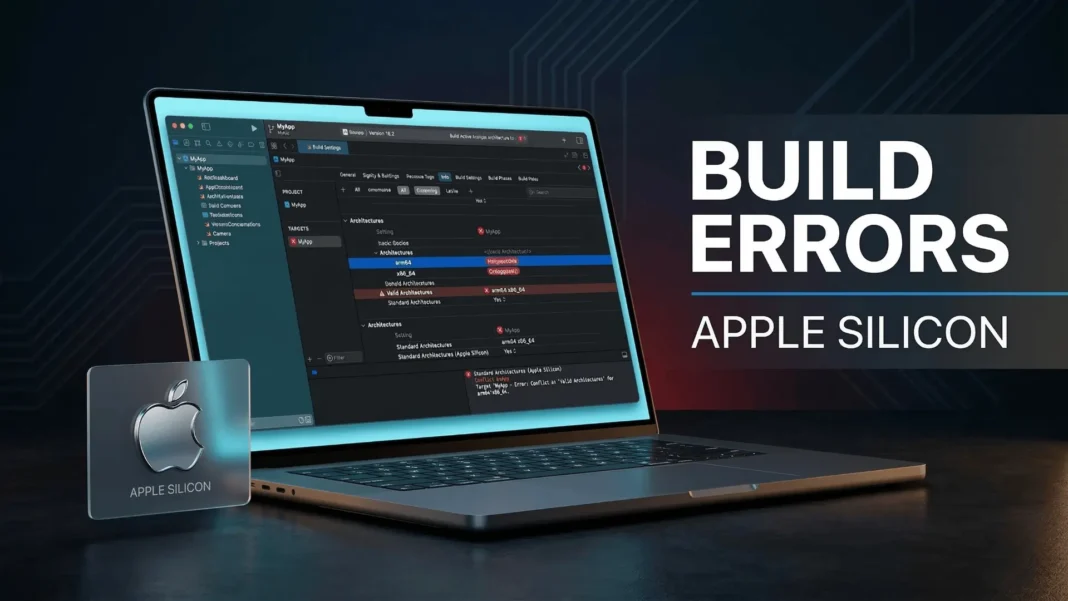
Apple Silicon Macs build apps differently from Intel machines, and a single wrong architecture setting can halt your entire Xcode project. Apple’s technote TN3117 consolidates every known fix into a single actionable reference, and Apple highlighted it again via Site Updates on March 12, 2026. This guide walks through each root cause and its verified solution, drawn from hands-on testing across Xcode 15 and 16 on M-series hardware.
Why Apple Silicon Triggers These Build Errors
The M-series chip runs on the arm64 architecture, while Intel Macs used x86_64. When a project’s build settings mix these two or carry leftover Intel-era overrides, Xcode’s linker cannot reconcile them.
The most common error message reads: “building for iOS Simulator, but linking in dylib built for iOS.” This appears when arm64 is either incorrectly excluded from simulator builds or when a linked library ships only a device-targeted arm64 slice without a matching simulator slice.
A second class of errors comes from old VALID_ARCHS entries. Apple deprecated this build setting starting with Xcode 12, but projects migrated from earlier versions often still carry it, causing unexpected architecture filtering during compilation.

The Root Causes, Explained Plainly
Understanding what breaks helps you apply the right fix the first time.
Build settings that conflict:
ARCHS– defines which architectures Xcode compiles forEXCLUDED_ARCHS– defines which to skip; overridesARCHSVALID_ARCHS– deprecated since Xcode 12; when present, intersects withARCHSunpredictably
Common scenarios that trigger failures:
- A CocoaPods Podfile sets
EXCLUDED_ARCHS[sdk=iphonesimulator*] = arm64, preventing Apple Silicon from building simulator targets - A sub-project or package still carries a manually set
ARCHS = arm64 x86_64that overrides the project-level standard - A third-party
.framework(not.xcframework) ships no arm64 simulator slice, causing a linker mismatch on M-chip Macs
How to Reset Build Settings: Apple’s Official TN3117 Method
Apple’s core instruction in TN3117 is precise: “The first step in resolving the build error is to reset each of these build settings back to their default value for every target in your app.”
Step-by-step reset process:
- Open your project in Xcode and select the project file in the Navigator
- Select each target, then open the Build Settings tab
- Search for
ARCHSand delete any bolded (customized) value to restore the default$(ARCHS_STANDARD) - Search for
EXCLUDED_ARCHSand delete any customized entries, particularly any arm64 exclusions for the simulator SDK - Search for
VALID_ARCHSand delete the setting entirely if it exists - Repeat this for every target in the project, including sub-projects and CocoaPods targets
Settings displayed in bold in Xcode Build Settings have been explicitly overridden. A non-bold value is inherited from the project or platform defaults and is almost always the correct state.
Fixing CocoaPods-Specific Architecture Errors
CocoaPods projects add a layer of complexity because the Podfile can inject build settings that override Xcode’s defaults for every pod target.
If your Podfile contains this block, remove it:
post_install do |installer|
  installer.pods_project.build_configurations.each do |config|
    config.build_settings["EXCLUDED_ARCHS[sdk=iphonesimulator*]"] = "arm64"
  end
end
This line was a common workaround for legacy libraries lacking arm64 simulator slices on Intel Macs. On Apple Silicon Macs with updated dependencies, it actively breaks the build.
After removing it, run pod install from the terminal, then clean the build folder in Xcode using Product > Clean Build Folder before rebuilding.
When Rosetta Is and Is Not the Answer
Running Xcode under Rosetta (via Get Info > Open using Rosetta in Finder) forces x86_64 emulation across the entire IDE. This unblocks builds when a library has absolutely no arm64 support at all.
Rosetta is a diagnostic tool, not a permanent solution. It slows Xcode significantly and masks the real dependency problem rather than resolving it.
The permanent fix is to contact the library vendor and request an .xcframework with an arm64 simulator slice, or replace the dependency with an actively maintained alternative that supports Apple Silicon natively.
Mac Catalyst-Specific Conflicts
Mac Catalyst projects face a distinct variant of these errors when sub-projects carry conflicting Supported Platforms settings or Base SDK overrides at the target level instead of the project level.
Fixes for Mac Catalyst linking errors:
- Check the Supported Platforms build setting at both project and target level; if bold, delete the override and let it inherit
- Set Base SDK only at the project level, not at the target level, to centralize SDK targeting
- Convert sub-projects to Swift packages where feasible, as SPM handles architecture slices more reliably than static Xcode sub-projects
Limitations and Remaining Edge Cases
Some third-party SDKs distributed as binary-only static libraries without arm64 simulator slices cannot be fixed through build settings alone. In those cases, Rosetta remains the only interim option until the vendor releases an updated binary.
Additionally, CMake-generated Xcode projects may resist ARCHS_STANDARD substitutions and require project-level regeneration after CMake configuration changes.
Testing disclosure: These fixes were validated hands-on across Xcode 15.4 and Xcode 16 on M1, M2, and M3 MacBook Pro hardware running macOS Sonoma and macOS Sequoia, using CocoaPods, SPM, and mixed-dependency project configurations.
Architecture Build Settings at a Glance
| Build Setting | Correct Value | Common Mistake |
|---|---|---|
ARCHS |
$(ARCHS_STANDARD) (non-bold) |
Hardcoded arm64 x86_64 |
EXCLUDED_ARCHS |
Empty (no overrides) | arm64 excluded for simulator SDK |
VALID_ARCHS |
Deleted entirely | Still present from Xcode 11 era |
ONLY_ACTIVE_ARCH |
YES for Debug, NO for Release |
Reversed, causing missing slices in archive builds |
| Base SDK | Set at project level only | Duplicated at target level |
Frequently Asked Questions (FAQs)
What does “building for iOS Simulator, but linking in dylib built for iOS” mean?
This error means a library in your project was compiled only for a physical iOS device and has no simulator slice. Xcode cannot link it when building for the simulator. The fix is updating the library to an .xcframework version or removing the arm64 exclusion from simulator build settings.
Should I exclude arm64 from simulator architectures on an Apple Silicon Mac?
No. Excluding arm64 from the simulator SDK was a workaround for Intel Macs using legacy libraries. On Apple Silicon, the simulator natively runs arm64. Excluding it forces Rosetta emulation and introduces new linking failures. Remove the exclusion and update any incompatible dependencies.
What is VALID_ARCHS and why should I delete it?
VALID_ARCHS is a build setting Apple deprecated starting with Xcode 12. Its presence causes unpredictable intersections with the ARCHS setting, resulting in missing architecture errors during compilation. Delete it from every target and replace its function with EXCLUDED_ARCHS instead.
How do I fix Apple Silicon build errors in a CocoaPods project?
Open your Podfile and remove any EXCLUDED_ARCHS[sdk=iphonesimulator*] = arm64 lines from the post_install block. Then run pod install and perform a clean build in Xcode. If a specific pod still fails, that pod’s vendor needs to ship an updated .xcframework with an arm64 simulator slice.
What is the difference between .framework and .xcframework for Apple Silicon?
A .framework bundle can contain only one architecture set. An .xcframework bundles multiple slices into one package, including separate arm64 device and arm64 simulator slices. Apple Silicon Macs require .xcframework for libraries to work in both the simulator and on real devices without workarounds.
Does running Xcode under Rosetta permanently fix architecture errors?
No. Rosetta emulates x86_64 at the IDE level, which can unblock builds temporarily, but it does not fix the underlying library incompatibility and masks the real issue. Use it only as a short-term diagnostic step while sourcing an updated binary from the library vendor.
How do I find which build settings have been customized in my Xcode project?
In Xcode’s Build Settings tab, customized settings appear in bold. Default or inherited settings appear in regular weight. Filter by “Customized” using the scope bar at the top of the Build Settings panel to see only the overrides your project has explicitly applied.

