

Quick Brief
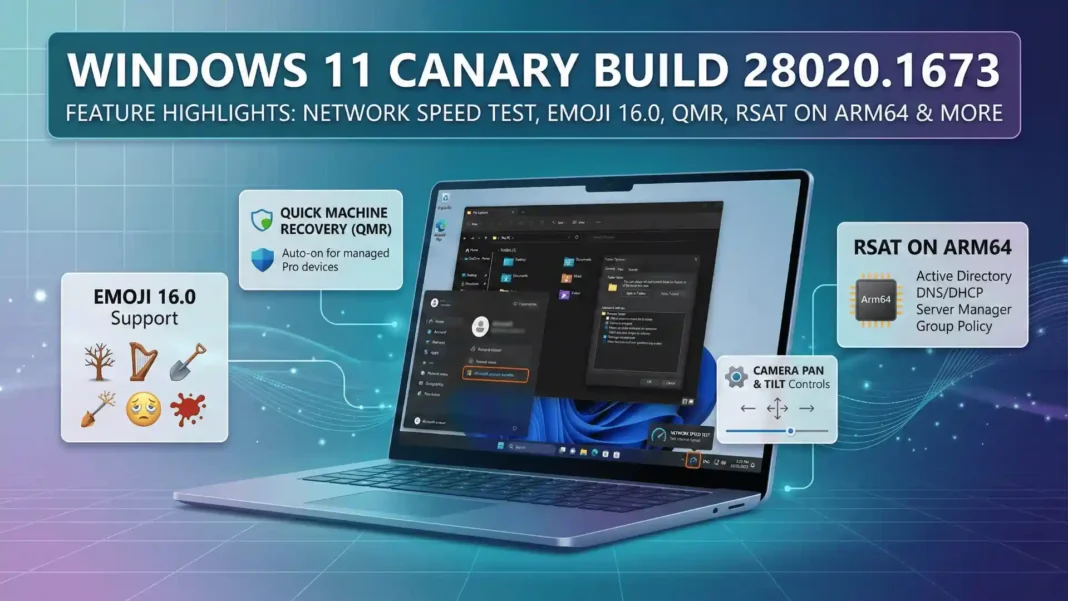
- Windows 11 Canary Build 28020.1673 adds a built-in network speed test shortcut accessible directly from the taskbar system tray and Wi-Fi Quick Settings
- RSAT tools including Active Directory, Group Policy, and DNS management now install as optional features on Windows 11 Arm64 devices
- Emoji 16.0 support arrives in the emoji panel with a curated set of new symbols across major categories
- Quick Machine Recovery behavior is adjusted for managed Windows Pro devices, including non-domain-joined machines
Microsoft shipped Windows 11 Insider Preview Build 28020.1673 to the Canary Channel on February 27, 2026, and the changes are concrete and practical. Eight targeted updates land in this build, covering network diagnostics, enterprise recovery, camera controls, Arm64 tooling, dark mode consistency, and emoji support. Each change reflects Microsoft’s current strategy: reduce reliance on external tools and close long-standing gaps in daily workflows.
The Built-In Network Speed Test Changes Everyday Troubleshooting
You no longer need a browser tab or third-party app to initiate a connection speed check. Build 28020.1673 places a “Perform speed test” shortcut in the taskbar’s network icon menu and in the Wi-Fi and Cellular Quick Settings panel.
Selecting it opens your default browser and launches a web-hosted speed test, currently a Bing-hosted widget using an embedded third-party engine, which reports latency, download, and upload metrics. This is a convenience shortcut, not a native local diagnostic. Results can vary based on your browser’s network stack, active VPNs, corporate proxies, CDN routing, or background processes consuming bandwidth. For authoritative measurements, tools like iperf3 or router-level diagnostics remain more reliable.
For enterprise environments, this feature calls out to an external online service. IT administrators should evaluate whether the browser widget’s egress behavior aligns with network compliance rules before broad deployment.
Quick Machine Recovery Adjustments Reach Windows Pro Devices
Build 28020.1673 adjusts Quick Machine Recovery (QMR) behavior for managed Windows Pro devices, including those not joined to a domain. When a device fails to boot, QMR can deliver targeted fixes from Microsoft’s cloud recovery infrastructure without requiring a full reinstall.
This change is targeted at managed Pro environments, not a blanket activation across all Windows Pro installations. Domain-joined enterprise devices remain under administrator policy control for QMR enablement. Enterprises should test QMR behavior in lab conditions before validating it across device fleets.
Backup and Restore Extends to Hybrid and Multi-User Environments
The first sign-in restore experience now works within Windows Backup for Organizations, extending automatic restoration of user settings and Microsoft Store apps to Microsoft Entra hybrid joined devices, Cloud PCs, and multi-user environments.
For IT teams managing device refreshes or OS migrations, this reduces manual reconfiguration at scale. A hybrid joined device arriving at a user’s desk can rebuild its app and settings state on first login without manual intervention.
RSAT on Arm64: Native Admin Tools for a Growing Hardware Category
Remote Server Administration Tools now install as optional features on Windows 11 Arm64 devices. Administrators gain access to Active Directory Domain Services, Active Directory Certificate Services, Group Policy Management, Server Manager, DNS Server Tools, and DHCP Server Tools on Arm64 hardware.
Install them via Settings > System > Optional Features or through Control Panel > Programs > Turn Windows features on or off. As Arm64 devices become more common in managed enterprise fleets, this closes a gap that previously forced IT staff to use separate x64 machines for remote administration. Admins should validate optional feature packaging and module dependencies in a test environment before broader deployment, as staged rollout behavior may affect feature availability.
Camera Pan and Tilt Controls Enter Windows Settings
Compatible webcams and PTZ cameras can now be adjusted directly from Settings > Bluetooth and Devices > Cameras, under the Basic Settings section. Pan and tilt controls no longer require opening a separate vendor application.
This applies only to cameras that expose PTZ functionality through standard protocols. It is not a replacement for advanced camera control suites needed in professional streaming or broadcast setups. For hybrid workers who need quick framing adjustments during calls, the improvement reduces friction meaningfully.
Emoji 16.0 Arrives With Curated New Symbols
Emoji 16.0 lands in this build, adding a curated set of new symbols across major Unicode categories. Microsoft describes the selection as prioritizing broad relevance, and the new emojis appear immediately in the emoji panel, accessible via the Windows key + period shortcut.
The curated approach keeps the panel manageable rather than adding a large batch of new symbols at once. For users in markets where emoji use in messaging and content creation is high, the update keeps the Windows input palette current.
Start Menu Account Manager Gets a New Link
The Start menu account manager menu now includes a new link pointing to Microsoft account benefits. This is a minor but confirmed change that surfaces account-related information more directly from the Start menu without navigating to the Settings app.
File Explorer Dark Mode and Stability Improvements
Build 28020.1673 extends dark theme styling into more legacy File Explorer dialogs, notably the Folder Options dialog and several file operation prompts. This reduces the jarring visual inconsistency where certain dialogs displayed in light mode even when the system was set to dark theme.
A separate fix addresses an issue where open File Explorer windows and tabs unexpectedly jumped to Desktop or Home. This was a disruptive bug for users managing multiple directory sessions simultaneously. Nearby Sharing reliability for larger files also receives improvements in this build.
Taskbar Search and Widgets Settings Refinements
Group headers in taskbar search now display result counts, giving users an immediate sense of search depth before clicking. Hovering over a result activates a preview without opening the file or application, reducing unnecessary context switches.
Widget Settings transitions from a cramped dialog to a full-page experience within the Widgets app, making personalization and feed management easier to navigate. Cross-Device Resume, introduced in the prior build 28020.1619, continues its rollout in this series, allowing users to resume Android phone apps including Spotify, Word, Excel, PowerPoint, and browser sessions directly from the Windows taskbar.
Canary Channel: What You Need to Know Before Installing
Build 28020.1673 is a Canary Channel release, designed for testing and not production use. Features in this build use Control Feature Rollout technology, meaning not every Insider receives every feature simultaneously. Some items are gated behind feature toggles or device compatibility checks.
Exiting the Canary Channel requires a clean reinstall of Windows 11. There is no supported downgrade path to lower build numbers without wiping the device. The Canary 28020-series targets Windows 11 26H1, a version currently in active development.
Windows 11 Canary Channel vs. Dev and Beta Channels
| Feature | Canary (28020-series) | Dev Channel | Beta Channel |
|---|---|---|---|
| Stability level | Lowest, experimental | Moderate | Highest among preview channels |
| Primary audience | Technical testers, developers | Early adopters | Mainstream power users |
| Exit method | Clean install required | Clean install required | Standard channel switch |
| Feature completeness | Partial, staged rollout | More polished | Near-final features |
| Build series | 28020+ (26H1) | Separate series | Stable-adjacent |
Frequently Asked Questions (FAQs)
What is Windows 11 Insider Preview Build 28020.1673?
Build 28020.1673 is a Canary Channel release published on February 27, 2026, part of the Windows 11 26H1 development track. It delivers eight confirmed changes including a taskbar network speed test shortcut, QMR adjustments for Pro devices, Emoji 16.0, RSAT on Arm64, and camera pan and tilt controls.
How do I access the new network speed test in Windows 11 Build 28020.1673?
Right-click the network icon in the system tray or open Wi-Fi Quick Settings from the taskbar. Select “Perform speed test.” Your default browser opens and runs a Bing-hosted web speed test reporting latency, download, and upload speeds. This is a browser-based shortcut, not a local diagnostic engine.
Is Windows 11 Canary Build 28020.1673 safe to install on my main PC?
No. Canary builds are explicitly unstable and intended for technical users on test or secondary devices. Exiting the Canary Channel after installation requires a full clean reinstall of Windows 11. Microsoft recommends against using Canary builds on production or primary machines.
What is Quick Machine Recovery and who does Build 28020.1673 affect?
Quick Machine Recovery delivers targeted cloud-based fixes to Windows devices that fail to boot without requiring a full OS reinstall. Build 28020.1673 adjusts QMR behavior specifically for managed Windows Pro devices, including non-domain-joined machines. Enterprise domain-joined devices remain policy-controlled.
Does RSAT fully work on Windows 11 Arm64 after Build 28020.1673?
RSAT modules including Active Directory, Group Policy, DNS Server Tools, DHCP, and Server Manager now install as optional features on Windows 11 Arm64. Admins should validate module availability and dependencies in a lab environment first, as staged rollout behavior may affect feature visibility across devices.
What does Emoji 16.0 add to Windows 11?
Emoji 16.0 introduces a curated set of new symbols across major Unicode categories. The update prioritizes broad cross-cultural relevance over volume. New emojis appear immediately in the Windows emoji panel, accessible via the Windows key + period keyboard shortcut after installing the build.
What is the Windows 11 26H1 release?
Windows 11 26H1 is a specialized Windows release in active development via the Canary Channel’s 28020-series builds. It targets new hardware platforms alongside features that may eventually reach standard Windows 11 releases through Dev, Beta, and Release Preview channels.
How do I exit the Canary Channel after installing Build 28020.1673?
There is no rollback or channel-switch option. To leave the Canary Channel, perform a clean installation of Windows 11 using official installation media. Switching to Dev, Beta, or Release Preview without a clean install is not supported for users on 28020-series Canary builds.

