

What You Need to Know
- GitHub Copilot CLI reached general availability on February 25, 2026 for all Copilot subscribers
- Plan mode, activated by pressing Shift+Tab or using
/plan, builds a structured implementation plan before writing any code - Autopilot mode handles complete task execution, running commands and iterating without stopping for per-step approval
- Background delegation with the
&prefix offloads tasks to a cloud-based coding agent, freeing your local terminal; use/resumeto switch back
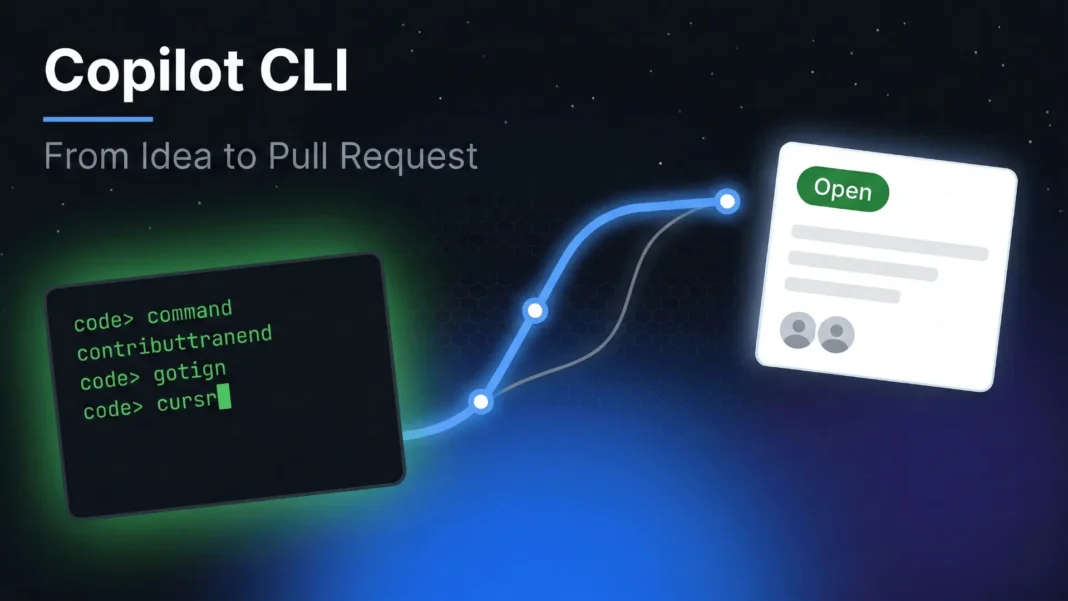
Most developers already do real work in the terminal. GitHub Copilot CLI meets them there, turning natural language intent into reviewable diffs, scaffolded project structures, and merged pull requests without breaking existing workflow. This guide covers the complete path from an empty directory to an open PR, grounded in the official GitHub Skills exercise and the February 2026 general availability release.
What GitHub Copilot CLI Actually Does
GitHub Copilot CLI is a GitHub-aware coding agent that runs directly in your terminal . It differs from IDE plugins because it has authenticated access to your GitHub repositories, issues, and pull requests, meaning it understands your actual project context . You can describe what you want in natural language, use /plan to outline the work before touching any code, and then review concrete commands or diffs before anything runs .
The core design principle is explicit approval. Copilot may reason internally, but it only executes commands or applies changes after you explicitly approve them . That principle makes it suitable for production workflows where accidental file changes carry real cost.
GitHub Copilot CLI launched in public preview in September 2025 and reached general availability on February 25, 2026.
Two Dedicated Modes for Controlled and Autonomous Work
Copilot CLI ships with two distinct modes for managing how much control you retain.
Plan mode activates when you press Shift+Tab or use the /plan slash command. Copilot analyzes your request, asks clarifying questions, and builds a structured implementation plan before writing or modifying any file. Review and approve the plan, then Copilot executes it. Use this when task scope is unclear or a change spans multiple components.
Autopilot mode hands execution to Copilot end-to-end: it runs commands, iterates on failures, and self-corrects without pausing for approval at each step. Use this for well-scoped, lower-risk tasks like dependency updates or test generation where the expected outcome is predictable.
Beyond these two modes, Copilot automatically delegates to built-in specialized agents when appropriate: Explore for fast codebase analysis, Task for running builds and tests, Code Review for high-signal change review, and Plan for implementation planning. Multiple agents can run in parallel.
The Workflow: Empty Directory to Open Pull Request
This is the five-stage workflow documented in GitHub’s official Skills exercise, with context on why each stage works .
Stage 1: State Intent, Not Architecture
Start with what you want to build, not the framework you plan to use .
copilot
> Create a small web service with a single JSON endpoint and basic tests
Or in single-prompt mode:
copilot -p "Create a small web service with a single JSON endpoint and basic tests"
Copilot explores the problem space at this stage. It may propose a directory structure, suggest a runtime, or ask clarifying questions . Nothing runs automatically. You inspect everything before deciding what to execute, which makes the CLI a good place to experiment before committing to a design .
Stage 2: Scaffold With Convention, Not Prescription
Once you confirm a direction, ask Copilot to scaffold the project structure .
> Scaffold this as a minimal Node.js project with a test runner and README
Copilot suggests scaffolding based on common conventions. It does not “own” the project structure . Treat the output like code from a teammate: review it, edit it, or discard it. You remain responsible for the result at every step .
Stage 3: Run Tests and Diagnose Failures Inside the Session
Run tests directly inside Copilot CLI without leaving the session .
> Run all my tests and make sure they pass
When a test fails, ask about that specific failure in the same session:
> Why are these tests failing?
> Fix this test failure and show the diff
> Fix this test failure and show the diff
This pattern of running with the ! prefix, inspecting output, asking Copilot, and reviewing the diff keeps the agent grounded in real terminal output rather than abstract prompts . The /explain slash command works best when you want understanding; /suggest works best when you want a concrete, reviewable proposal .
Stage 4: Handle Mechanical Changes at Scale
Copilot CLI is well suited to changes that are easy to describe but tedious to execute.
> Rename all instances of X to Y across the repository and update tests
Because these changes are mechanical and scoped, they are easy to review and easy to roll back . The CLI produces a concrete diff rather than a wall of generated text, which keeps the review process fast .
Stage 5: Commit and Open a Pull Request in Natural Language
When the changes are ready, commit and push without leaving the terminal .
Add and commit all files with applicable descriptive messages, push the changes.
Create a pull request and add Copilot as a reviewer
Create a pull request and add Copilot as a reviewer
The work becomes durable: it lands on GitHub as a reviewable, testable, shippable pull request that persists regardless of your terminal session . This is where Copilot’s value compounds as part of a flow that ends with shipping, not just suggestions .
Background delegation extends this further: prefixing any prompt with & delegates the task to a cloud-based coding agent so your local terminal stays free for other work. Use /resume to check in on the delegated session at any time.
When to Use the Terminal vs. the IDE
The handoff point between CLI and IDE is precision, not comfort .
Use the CLI when you want to:
- Move quickly with low ceremony using
/planand/diff - Explore ideas and scaffold projects before committing to a design
- Handle mechanical, repetitive, or scoped changes efficiently
Switch to your IDE when:
- Precision matters and you need to refine logic you will defend in code review
- Cross-file decision-making requires cursor-level editing alongside AI suggestions
Use background delegation when you want to continue local work and collaborate asynchronously on a separate task .
The underlying principle is that Copilot CLI is a tool for momentum, not a replacement for judgment . Used well, it gets you from intent to concrete changes faster; the IDE is where you shape those changes into exactly what you need .
Review, Undo, and Session Management
Copilot CLI includes built-in tools for reviewing and reversing changes made during a session.
/diffshows all changes made during your session with syntax-highlighted, inline diffs; you can add line-specific comments and submit structured feedback/reviewanalyzes staged or unstaged code changes directly in the CLI for a quick sanity check before committing- Undo/rewind: Pressing Esc+Esc rewinds file changes to any previous snapshot in the session
Sessions are not limited by context length. When a conversation approaches 95% of the context window, Copilot automatically compresses history in the background so sessions can run as long as needed. Repository memory persists across sessions, with Copilot retaining conventions, patterns, and preferences it learns about your codebase.
Model Selection and Extensions
Copilot CLI at general availability lets you choose from models including Claude Opus 4.6, Claude Sonnet 4.6, GPT-5.3-Codex, and Gemini 3 Pro. Faster models like Claude Haiku 4.5 are available for quick tasks. Switch models mid-session with the /model command, and toggle reasoning visibility with Ctrl+T.
GPT-5 mini and GPT-4.1 are included with a Copilot subscription at no additional premium request cost.
For extensibility, Copilot CLI ships with GitHub’s MCP server built in and supports custom MCP servers for connecting to any external tool or service. Community and custom plugins install directly from GitHub repositories using /plugin install owner/repo. Custom agents can be created through an interactive wizard or by writing .agent.md files.
Installation and Getting Started
Copilot CLI runs on macOS, Linux, and Windows. It is available through npm, Homebrew, WinGet, a shell install script, and standalone executables. Homebrew, WinGet, and shell script installations update automatically. Copilot CLI is also included in the default GitHub Codespaces image and available as a Dev Container Feature.
The getting-started sequence is straightforward:
- Install Copilot CLI using your preferred method
- Run
copilotand authenticate with your GitHub account - Run
/initto generate Copilot instructions tailored to your project - Start building
Copilot CLI is available with Copilot Pro, Pro+, Business, and Enterprise plans. For Business and Enterprise subscribers, an administrator must enable Copilot CLI from the Policies page before users can access it.
Considerations and Limitations
Autopilot mode reduces per-step human oversight, which introduces risk for changes in sensitive areas of a codebase. For tasks where precision and accountability matter, interactive approval with Plan mode is the better default. Business and Enterprise administrators should review GitHub’s network access management and policy enforcement options before deploying Copilot CLI at scale. The preToolUse hook system allows organizations to enforce file access policies, argument sanitization, and custom approval workflows as a safeguard.
Frequently Asked Questions (FAQs)
What is GitHub Copilot CLI?
GitHub Copilot CLI is a terminal-native coding agent with direct GitHub API access . It lets you describe work in natural language, plan before touching code, and review diffs before anything runs. It handles scaffolding, test diagnosis, mechanical refactoring, and pull request creation without leaving the terminal.
When did GitHub Copilot CLI become generally available?
GitHub Copilot CLI reached general availability on February 25, 2026. It launched in public preview in September 2025. At GA, access extended to all Copilot subscribers, including Pro, Pro+, Business, and Enterprise plans.
What is Plan mode and how do you activate it?
Plan mode activates when you press Shift+Tab or use the /plan slash command. Copilot asks clarifying questions, builds a structured implementation plan, and presents it for review before writing or modifying any code. It is best used when task scope is ambiguous or a change spans multiple files.
What is Autopilot mode?
Autopilot mode lets Copilot execute commands, iterate on errors, and complete tasks end-to-end without stopping for per-step approval. It is suited for well-scoped, lower-risk tasks like dependency updates or test generation. For decisions you need to defend in code review, Plan mode with explicit approval is the safer default.
Can Copilot CLI run as part of GitHub Actions?
Yes. Copilot CLI supports a programmatic -p flag for non-interactive execution, which outputs results to standard output and exits on completion . This enables integration into CI/CD pipelines for tasks such as automated code review and PR description generation.
Which AI models does Copilot CLI support?
At general availability, Copilot CLI supports Claude Opus 4.6, Claude Sonnet 4.6, GPT-5.3-Codex, Gemini 3 Pro, and Claude Haiku 4.5 for quick tasks. GPT-5 mini and GPT-4.1 are included with a Copilot subscription at no additional premium request cost. Switch models mid-session with the /model command.
Does Copilot CLI work for Business and Enterprise teams?
Yes, but administrators must first enable Copilot CLI from the Policies page before users can access it. Organization-level controls include model availability policies, network access management, HTTPS proxy support, and preToolUse hooks for enforcing file access and approval policies across teams.
What is background delegation in Copilot CLI?
Background delegation lets you prefix any prompt with & to hand the task to a cloud-based coding agent while your local terminal remains free. Use /resume to switch between your local session and the remote coding agent session at any point. This is useful for long-running tasks you want to monitor asynchronously.

