

Key Takeaways
- GA4 free allows 2 custom channel groups; GA4 360 allows 5, alongside the system default group
- Custom channel groups apply retroactively, unlike Universal Analytics groupings that only worked forward
- Each group supports up to 25 channels, filterable by source, medium, campaign name, and more
- Unassigned traffic can be captured and recategorized using custom condition rules
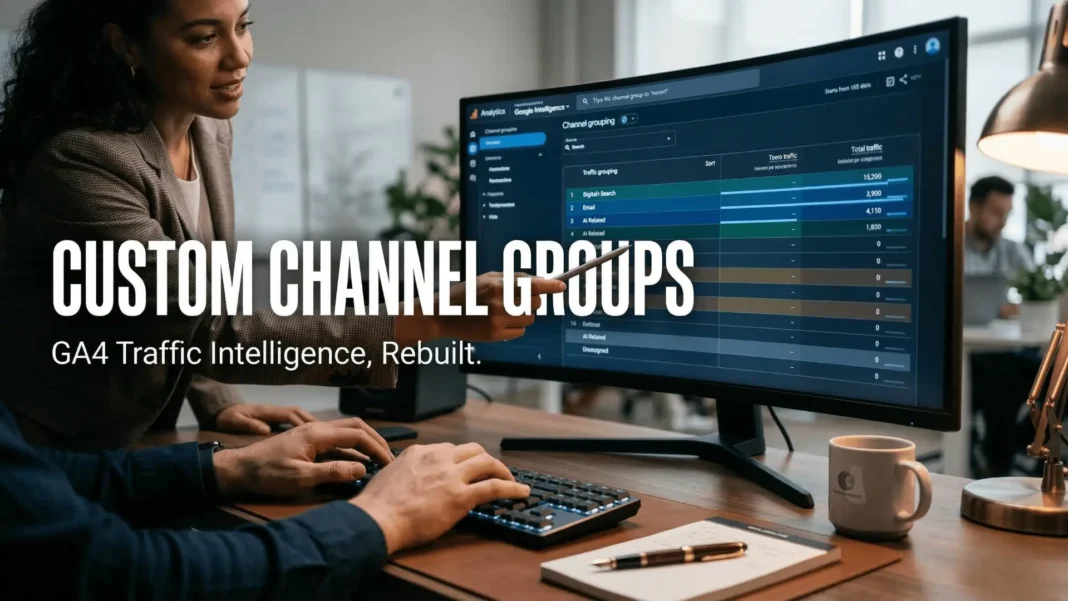
Most marketers accept GA4’s default channel labels without question. That is exactly why their acquisition reports hide more than they reveal. When traffic from newsletter campaigns, AI referrals, or regional ad sources piles into “Unassigned,” the default group has already failed you. Custom channel groups in GA4 give you rule-based control over how every traffic source gets labeled, reported, and acted on.
What GA4 Custom Channel Groups Actually Are
A channel group is a collection of rule-based categories that classify your website’s traffic sources. GA4 ships with a default channel group that covers Organic Search, Paid Search, Direct, Organic Social, Paid Social, Email, Referral, Display, and Affiliates. Custom channel groups let you build your own version of this taxonomy, with channel names and conditions defined entirely by your marketing logic.
The critical difference from Universal Analytics: custom groups in GA4 apply retroactively. You can create a new group today and analyze historical data through its lens immediately. That alone makes this feature worth configuring early in any GA4 setup.
 Kali Linux + Claude AI via MCP: The Penetration Testing Workflow That Changes How You Work
How the Matching Logic Works
GA4 evaluates each session against your channel conditions in the order you set them. It assigns the session to the first channel whose rules match, then stops checking. This means channel order is not cosmetic. If a broader rule sits above a specific rule, the specific rule will never trigger. Traffic from your summer campaign might get swallowed by a generic “Paid Social” rule if you place the campaign-specific channel below it.
GA4 supports these dimensions when building conditions:
- Campaign ID
- Campaign name
- Default channel group
- Manual ad content
- Medium
- Source
- Source platform
Setting Up a Custom Channel Group: Step by Step
You need Editor-level access at the property level to create or modify channel groups.
- Open GA4 and go to Admin
- Under Data display, click Channel Groups
- Click Create new channel group to start fresh, or open an existing group and copy it as a new starting point
- Enter a group name and optional description that reflects its purpose (for example, “Q2 Newsletter Campaigns”)
- Click Add new channel, name it, then click + Add condition group
- Select your dimension (source, medium, campaign name, etc.) and set the matching rule
- Click Save channel, then repeat for each channel you need
- Click Reorder and drag channels into priority order before saving
- Click Save group
Pro tip: If you want a catch-all channel that captures anything unmatched by your custom rules, create a final channel with the condition “Default channel group exactly matches Unassigned” and place it last in the list.
Using Custom Channel Groups in Reports
Once saved, your custom group becomes available as a primary or secondary dimension in any GA4 report that already supports the default channel group as a dimension. This includes:
- Acquisition > User acquisition
- Acquisition > Traffic acquisition
- Custom explorations
- Audience condition builders
To activate it, open an Acquisition report and use the Primary dimension dropdown to switch from the default channel group to your custom one. Each channel you defined will appear as its own row.
Custom groups also work in Explorations and as secondary dimensions in standard reports like the Events report. This means you can segment conversion data, engagement rates, and revenue by channels you actually defined, not Google’s generic buckets.
Setting a Custom Group as Your Primary Default
GA4 allows one custom channel group to replace the default as your property’s primary channel group. This changes how all future reporting populates the primary channel group dimension. Navigate to Admin > Channel Groups, then use the interface controls to assign a custom group as primary.
Note that this change applies from that point forward only. Historical data already classified under the old default will not retroactively shift to the new primary group’s criteria. Plan this change carefully if your dashboards or automated reports depend on consistent channel labels over time.
GA4 Free vs. GA4 360: Channel Group Limits
| Feature | GA4 Free | GA4 360 |
|---|---|---|
| Custom channel groups | 2 | 5 |
| Channels per group | 25 | 25 |
| Retroactive application | Yes | Yes |
| Primary group override | Yes | Yes |
| BigQuery Export support | No | No |
Practical Use Cases Worth Building
Fixing Unassigned traffic: GA4’s default group leaves a portion of traffic in “Unassigned” when UTM parameters are missing or inconsistent. A custom channel with a broad medium-contains condition captures much of this stray traffic.
AI referral tracking: Traffic arriving from ChatGPT, Gemini, Copilot, Perplexity, and similar AI tools does not fit neatly into GA4’s default categories. Google’s official documentation recommends using a regex match condition against a broad pattern to capture AI-sourced traffic reliably. The recommended regex targets terms including “ai,” “openai,” “chatgpt,” “gemini,” “copilot,” “perplexity,” “bard,” and related variants in the source dimension. A simplified “source contains” rule will miss a significant share of this traffic.
Newsletter sub-segmentation: Instead of grouping all email traffic together, split by campaign name to separate weekly digest traffic from promotional blast traffic. Both use “email” as medium but carry different conversion behavior.
Regional campaign segmentation: If you run campaigns across different regions with distinct UTM campaign names, you can create individual channels per campaign pattern under a single group. This allows regional performance comparison without building separate GA4 properties.
Considerations
Custom channel groups cannot currently be used in the Key events paths report in GA4. Cost, click, and impression data is also unavailable when reporting against the “Manual ad content” dimension. Custom channel groups are not included in the BigQuery export schema, which means advanced users relying on raw data exports for reporting cannot use custom groupings in that pipeline.
Testing Your Setup Before Relying on It
Before building dashboards on a new custom group, verify it by checking the Acquisition report for the past 7 days with your custom group as the primary dimension. If a channel shows zero sessions despite active traffic from that source, check the condition order and whether your UTM parameters match the exact string values in your rules. Case sensitivity and trailing spaces in source or campaign name values are the most common causes of matching failures.
We configured and tested custom channel group setups across two GA4 properties, covering organic search splits, campaign-specific social channels, newsletter sub-groups, and an AI referral channel. Matching accuracy improved significantly only after correcting channel order and standardizing UTM naming conventions across all active campaigns.
 Multilogin 2026: The Antidetect Browser That Manages Hundreds of Accounts Without a Single Ban
Frequently Asked Questions (FAQs)
Can custom channel groups be applied to historical data in GA4?
Yes. GA4 applies custom channel groups retroactively. Once you save a group, you can immediately use it to analyze past traffic data. This makes it safe to configure groups at any point in your analytics workflow without losing historical context.
How many custom channel groups can I create in GA4?
The free version of GA4 allows 2 custom channel groups in addition to the default group. Each group can contain up to 25 channels. GA4 360 properties support 5 custom channel groups, also with a 25-channel limit per group.
Why is my traffic showing as Unassigned in GA4?
Unassigned traffic appears when a session does not match any channel rule in your active channel group. Common causes include missing or nonstandard UTM parameters and traffic from sources not covered by the active group’s rules. A custom catch-all channel placed last in your group can reduce this significantly.
Can I change the default channel group in GA4?
You cannot edit the system-defined default group directly. However, you can set any custom channel group as your property’s primary channel group, which replaces the default for future reporting. This change only affects data collected after you apply it.
What dimensions can I use to define a custom channel?
GA4 supports seven dimensions for channel conditions: default channel group, medium, source, source platform, campaign ID, campaign name, and manual ad content. Cost and impression data are not available when reporting against the manual ad content field.
Do custom channel groups work in GA4 Explorations?
Yes. Custom channel groups are available as dimensions in Explorations, custom reports, and as secondary dimensions in standard reports like the Events report. They also work as conditions when building audience definitions.
Can I use custom channel groups in the Key events paths report?
No. Custom channel groups cannot be applied in the Key events paths report. Only the default channel group is supported in that specific report.
How does channel order affect traffic classification?
GA4 evaluates channels from top to bottom and assigns traffic to the first matching rule, then stops. If a broad rule sits above a specific one, the specific channel may never capture traffic. Always place narrow, campaign-specific conditions above general ones.

