

Key Takeaways
- Manus AI assigns each user a unique personal email address to trigger autonomous tasks directly from any inbox
- Forwarding one email to Mail Manus triggers analysis, task execution, and results delivered back to your inbox without app switching
- 40% of U.S. employees now use AI at work, nearly doubling from 21% two years ago, per the 2025 Gallup workplace report
- Custom workflow emails automate recurring tasks such as expense logging, travel planning, and invoice processing with zero manual input after setup
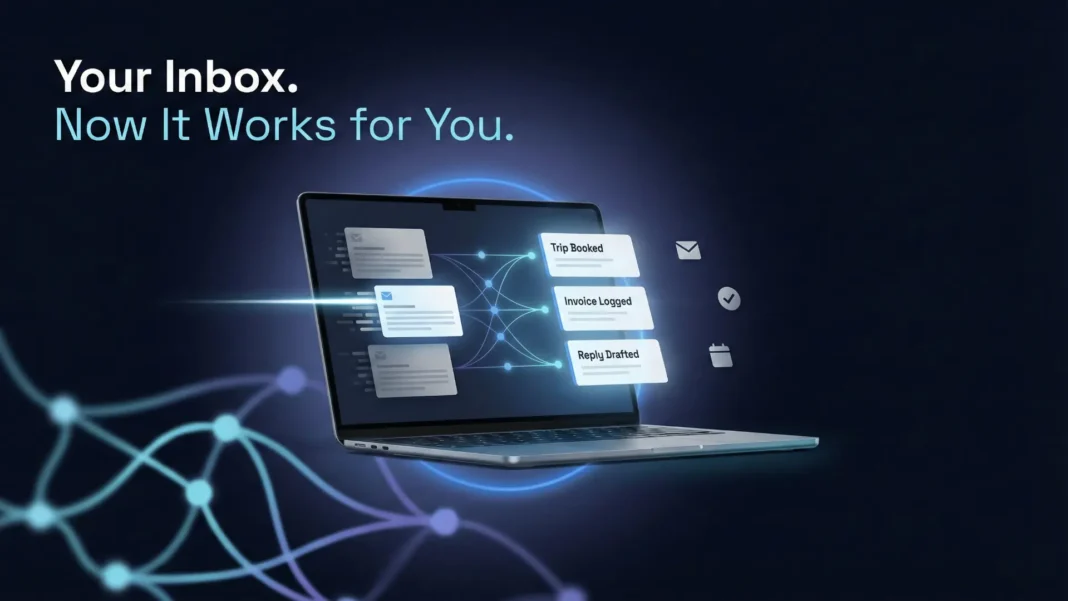
Your inbox handles your business before you do. Manus AI reverses that dynamic entirely, placing an autonomous agent between you and the flood of incoming messages. This tutorial shows you exactly how to build, configure, and deploy a Manus AI email agent that reads, acts, and reports back while you focus on work that matters.
What Makes Manus AI Different From Standard Email Tools
Most email assistants draft replies or tag messages. Manus AI executes tasks. It operates as a fully autonomous agent that processes email content, understands intent, creates structured outputs, and connects those outputs to tools like Notion, Google Calendar, and spreadsheets, all triggered from a single forwarded message.
The architecture behind this is a multi-agent orchestration system running in a secure cloud sandbox. Manus executes SKILL.md workflows, Python and Bash scripts, and multi-step task sequences end-to-end inside an isolated virtual machine, not on your local machine. This means a forwarded client brief can simultaneously produce a structured report, a task list, and a calendar event without any additional prompting from you.
AI workplace adoption has nearly doubled. According to Gallup’s 2025 workplace report, 40% of U.S. employees now use AI at work, up from 21% two years ago, and daily AI users have doubled to 8%. Yet 82% of organizations still plan to integrate AI agents by 2026, meaning most businesses are only beginning to unlock this capability. Building a structured email agent now puts you ahead of that curve.
How Mail Manus Works: The Core Mechanism
Every Manus account receives a personal email address in the format your-name-abc123@mail.manus.ai. Thisaddress is the activation point for every automated workflow.
You interact with it through three methods:
- Forward: Send any incoming email to your bot address and include task instructions in the forwarding note
- CC: Loop the address into live email threads so Manus monitors and acts in real time
- Auto-forward rules: Set Gmail or Outlook filters to route specific email types automatically
Security is enforced at the sender level. Only pre-approved email addresses can trigger Manus tasks, which prevents unauthorized automation from firing. You configure approved senders inside Settings, under Mail Manus, then Approved Senders.
When Mail Manus Works Best (And When It Does Not)
Mail Manus excels at specific workloads. Use it for:
- Processing incoming emails that require research or analysis
- Converting email threads into structured outputs such as tables, summaries, or reports
- Automating recurring email-based tasks like expense tracking or invoice logging
- Delegating work without leaving your inbox
- Collaborating with team members by forwarding shared threads
Manus documentation explicitly flags three scenarios where the app interface is a better choice than Mail Manus: tasks requiring real-time interaction, highly sensitive information that warrants direct app handling, and situations requiring immediate results, since email workflows carry inherent processing latency.
Step-by-Step Setup: Build Your Email Agent in Under 20 Minutes
Step 1: Access Mail Manus Settings
Log into your Manus account and navigate to Settings, then Mail Manus. Copy your unique personal Manus email address and save it as a contact for easy forwarding access.
Step 2: Forward or CC Your First Email
Forward any email to your Manus address. Include your task instructions either in the forwarding note or in the subject line for clarity. Manus analyzes the email content, processes any attachments, and sends results back to your inbox. Supported attachment types include PDFs, Word documents, Excel spreadsheets, images, and CSVs.
Step 3: Set Up Your First Workflow Email
A workflow email is a dedicated Manus address you create for a specific recurring task category. Official examples from Manus documentation A workflow email is a dedicated Manus address you create for a specific recurring task category. Official examples from Manus documentation include:
travel@manus.botfor flight, hotel, and conference bookingsexpenses@manus.botfor receipts and expense trackinginvoices@manus.botfor invoice processing and loggingfeedback@manus.botfor customer feedback analysis
To create one, go to Settings, then Mail Manus, then Workflow Emails. Create a new workflow email, assign it a name, choose its address, and write a default prompt that tells Manus exactly what to do every time an email arrives at that address. create one, go to Settings, then Mail Manus, then Workflow Emails. Create a new workflow email, assign it a name, choose its address, and write a default prompt that tells Manus exactly what to do every time an email arrives at that address.
Step 4: Configure a Gmail Auto-Forward Filter
In Gmail, open Settings and navigate to Filters and Blocked Addresses. Create a filter matching sender, subject, or keyword criteria relevant to your workflow. Set the action to auto-forward matching emails to your workflow address. For the Uber expense example from official Manus documentation, filter emails from no-reply@uber.com with subject “Uber E-Receipt” and forward them to expenses@manus.bot. Manus then extracts date, amount, category, and merchant and logs each entry to your Notion Expenses database automatically.
Step 5: Package Workflows as Reusable Skills
Once a task runs successfully, type “Package this workflow as a Skill” in the Manus prompt bar. Manus auto-generates a SKILL.md file and bundles all associated scripts. Trigger the skill anytime using /SKILL_NAME. No coding is required to create a skill. You write instructions in Markdown, and Manus can also auto-generate skills from your successful conversations.
Skills load using progressive disclosure: metadata loads at startup at around 100 tokens, detailed instructions load when triggered at under 5,000 tokens, and resources load on demand. This keeps context windows efficient regardless of how complex your workflow becomes.
Step 6: Cancel or Monitor Tasks
Processing time depends on task complexity. Simple summaries complete in 1 to 2 minutes. Comprehensive research tasks take 10 to 15 minutes. Manus sends status updates via email throughout. If you forward something by mistake, Manus sends a confirmation email before starting complex tasks, giving you time to cancel. You can also reply “Cancel” to any status email or stop the task directly from the Manus app.
Four Verified Workflow Examples From Official Manus Documentation
Travel Management
Set up travel@manus.bot with a filter matching emails from airlines, hotels, and conference organizers. Use this default prompt: “Extract dates, locations, and confirmation numbers. Add to Google Calendar with a one-hour buffer before flights. Set reminders 24 hours and 2 hours before departure.” Every booking confirmation automatically becomes a calendar event with reminders and travel buffers.
Expense Tracking
Set up expenses@manus.bot with a filter matching ride-sharing receipt emails. The default prompt instructs Manus to extract date, amount, category, and merchant, then log each entry to a Notion Expenses database. All ride-sharing receipts are automatically captured and organized without manual entry.
Invoice Processing
Set up invoices@manus.bot with a filter matching emails with “Invoice” in the subject and a PDF attachment. Manus extracts invoice number, date, amount, vendor, and due date. It adds each record to an accounting spreadsheet and sets a reminder three days before the due date.
Customer Feedback Analysis
Set up feedback@manus.bot with a filter matching “feedback” or “review” in the subject. Manus analyzes sentiment as positive, negative, or neutral, extracts key issues and suggestions, and posts a summary to a designated Slack channel.
Skills vs. Direct Tasking: When to Use Each
| Scenario | Use Direct Mail Manus | Use Agent Skills |
|---|---|---|
| One-off research or analysis | Yes | No |
| Recurring workflow (daily/weekly) | Possible but repetitive | Yes |
| Multi-step, multi-tool automation | Possible | Yes |
| Team-wide standardized process | No | Yes |
| Quick summary of a single email | Yes | No |
Considerations Before You Deploy
Mail Manus is not suited for every task. Manus documentation explicitly advises against using it for real-time interactions, highly sensitive information, or tasks requiring immediate results. All email tasks consume Manus credits at the same rate as app-based tasks, so high-volume workflows should be planned against your credit allocation. Initial workflow prompts also benefit from 3 to 5 test runs to verify output accuracy before enabling fully automated forwarding at scale. Starting with one workflow email before expanding to several reduces misconfiguration risk.
Measuring What You Built
Early enterprise AI agent deployments show up to 50% efficiency improvements in customer service, sales, and HR operations, based on documented case studies. Organizations automating routine workflows report 30 to 60% reductions in operational costs for those automated processes. Track these four metrics after launch to verify your Manus setup is performing:
- Draft acceptance rate: Percentage of Manus-generated drafts or outputs you use without edits
- Workflow email volume: Number of tasks auto-processed weekly through your workflow addresses
- Manual override frequency: How often you cancel or correct a Manus output (signals prompt refinement needs)
- Processing time per task type: Baseline against Manus’s stated 1 to 2 minute range for simple tasks
Frequently Asked Questions (FAQs)
What is Mail Manus and how does it work?
Mail Manus lets you trigger Manus tasks by forwarding emails to a unique personal address. Manus analyzes the email content and attachments, executes your instructions, and sends results back to your inbox. It integrates into your existing email workflow without requiring you to open the Manus app.
Can Manus AI send emails on my behalf?
Manus can create and deliver outputs via email, but the key execution model is task-based. Manus sends a confirmation email before starting complex tasks, giving you the option to cancel before any action proceeds. You can also cancel by replying “Cancel” to any status update email.
What happens if I forward a sensitive email to Manus by mistake?
Manus sends a confirmation email before beginning complex tasks, so you have a window to cancel. For highly sensitive information, Manus documentation recommends using the direct app interface rather than Mail Manus for tighter control over data handling.
How do I create a recurring email workflow in Manus?
Create a dedicated workflow email inside Settings, under Mail Manus, then Workflow Emails. Write a default prompt defining what Manus should do with each arriving email. Then set up a Gmail or Outlook auto-forward filter to route matching emails to that workflow address automatically.
Does Mail Manus work with Outlook and Gmail?
Yes. Mail Manus supports both Gmail and Outlook. You create auto-forward filters in either client to route emails to your Manus workflow addresses. The documentation provides filter setup examples for both platforms.
What file types can Manus process from email attachments?
Manus processes PDFs, Word documents, Excel spreadsheets, images, CSVs, and other common file formats attached to emails. Processing time ranges from 1 to 2 minutes for simple tasks to 10 to 15 minutes for comprehensive research tasks.
Do email-triggered tasks use Manus credits?
Yes. Tasks triggered via Mail Manus consume credits at the same rate as tasks run directly through the Manus app. There is no separate pricing tier or discount for email-triggered tasks.
How do Agent Skills differ from standard Mail Manus tasks?
Standard Mail Manus tasks execute one-off instructions per forwarded email. Agent Skills package entire workflows into reusable, triggerable units using SKILL.md files. Skills are best for repeatable, multi-step processes that your team runs on a regular schedule, and they can be shared across an organization through a Team Skill Library.

