

Essential Points
- Chrome 144 introduces individual request throttling, ending the all-or-nothing global slowdown approach
- The new Request conditions drawer replaces the old “Network request blocking” panel with unified block and throttle controls
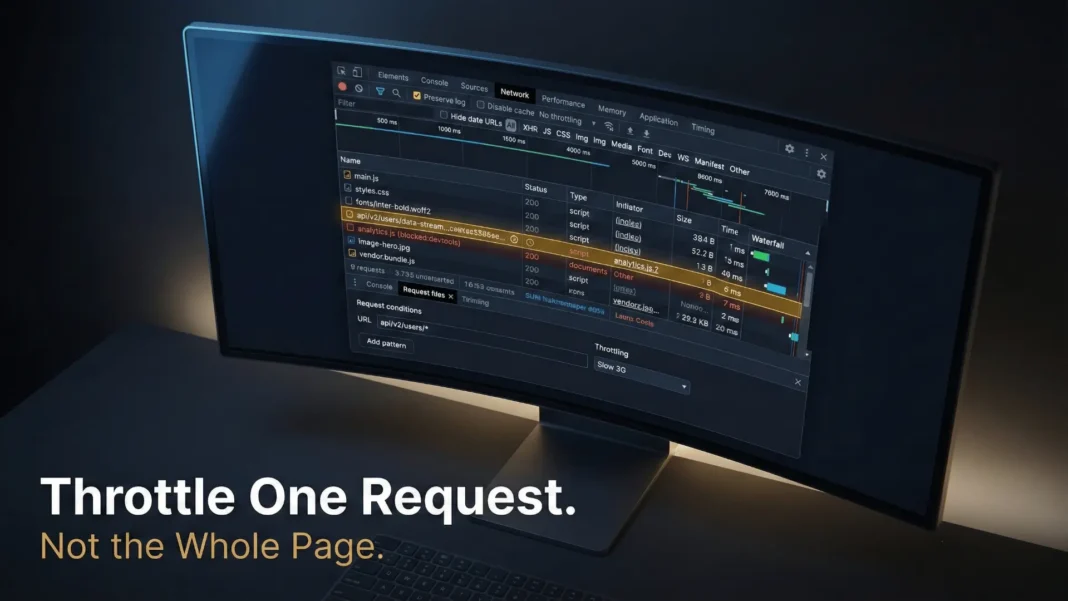
- Throttled requests appear in yellow or gold with a clock icon; blocked requests show in red with
(blocked:devtools)status - Wildcard URL patterns let you throttle entire domains or groups of dynamic resources in a single rule
Most developers have wasted hours slowing down an entire page just to debug one sluggish API call. Chrome 144 ends that frustration with individual request throttling, a feature that targets a single resource while leaving everything else at full speed. This guide covers exactly how the new Request conditions drawer works, when to use it, and what it means for real-world performance debugging workflows.
Why Global Throttling Was Holding Developers Back
Before Chrome 144, DevTools offered two options: throttle everything globally or block a request entirely. Testing a third-party API with high latency meant forcing your entire page onto Slow 3G, which distorted every other metric you were trying to measure. That made it nearly impossible to isolate whether a Core Web Vitals failure came from a hero image, a font file, or an analytics script.
The limitation was especially painful when debugging Largest Contentful Paint (LCP). A developer trying to reproduce a slow LCP from a CDN-hosted image would have to throttle the full session, making JavaScript execution, CSS parsing, and all other requests artificially slow in the process. The result was noise, not insight.

What the Request Conditions Drawer Actually Does
The Request conditions drawer is the control center for per-request throttling in Chrome DevTools. You access it by right-clicking any request in the Network panel and selecting either Block request or Throttle request for the exact URL or the entire domain, which opens the drawer automatically and creates a rule instantly.
Inside the drawer, you can:
- Apply standard presets such as Slow 3G, Fast 3G, or any custom throttling profile you have defined
- Write URL patterns with wildcards (
*) to match dynamic endpoints or groups of similar resources, for example*://example.commatches all requests to that domain - Reorder rules using arrow buttons to control which condition applies when a request matches multiple patterns
- Toggle the “Enable blocking and throttling” checkbox to disable all rules at once without deleting them
- Add, edit, or remove individual patterns at any time using the Edit and Delete buttons in the drawer
How to Throttle a Specific Request: Step-by-Step
Getting started takes under a minute once you know where to look.
- Open Chrome DevTools with F12 or right-click then select Inspect
- Navigate to the Network panel and load or reload your page
- Right-click the target request under the Name column
- Select Throttle request for the exact URL or the entire domain
- The Request conditions drawer opens automatically with the rule pre-filled and the “Enable blocking and throttling” checkbox activated
- Select a throttling preset or choose a custom profile from the dropdown in the Throttling column
- Reload the page to apply the rule
The URL patterns are saved even after closing the browser. However, throttling and blocking are disabled when DevTools is closed. You need to reopen DevTools and re-enable the “Enable blocking and throttling” checkbox to reactivate the rules in your next session.
Opening the Request Conditions Drawer Directly
Beyond the right-click shortcut, you can open the Request conditions drawer two additional ways.
Press Command+Shift+P on macOS or Control+Shift+P on Windows, Linux, and ChromeOS to open the Command Menu. Type “Request conditions,” select Show Request conditions, and press Enter. DevTools displays the drawer at the bottom of the window.
Alternatively, in the top-right corner of DevTools, select More tools then Request conditions.
Reading Throttled Requests in the Network Panel
Identifying which requests are artificially slowed versus naturally slow is critical for accurate debugging. Chrome gives you clear visual signals in the Network panel.
Throttled requests appear in yellow or gold with a clock icon next to the request URL and in the Time column. Hovering over that icon shows a tooltip with the exact network condition being applied, and the same information is visible in the Timings sub-panel. Clicking the icon directly opens the Request conditions drawer and highlights the specific rule responsible. Blocked requests appear in red with the status (blocked:devtools) in the Status column.
When recording a performance profile in the Performance panel, locate the request in the Network track and hover over it to view a tooltip detailing the applied network conditions.
DevTools Throttling vs. System-Level Throttling
Understanding how DevTools introduces latency matters for interpreting test results accurately. Chrome uses a request-level throttling approach, meaning a delay is applied once the server response is received rather than during DNS resolution or TCP/SSL handshake establishment.
| Preset | DevTools Latency Added | Equivalent Real-World Latency |
|---|---|---|
| Fast 4G | 165 ms | 60 ms |
| Slow 4G | 562.5 ms | 150 ms |
| 3G | 2,000 ms | 400 ms |
The higher latency values in DevTools are intentional. They are calibrated to produce a roughly equivalent overall slowdown even though they skip the multi-round-trip cost of connection setup. For Lighthouse testing, switching from simulated throttling to DevTools applied throttling in the Lighthouse advanced settings produces more accurate real-load results.
Practical Use Cases for Individual Throttling
Per-request throttling solves a specific class of debugging problems that global throttling cannot address cleanly. Here are the highest-value scenarios:
- Third-party API latency simulation: Throttle only your analytics or payment API endpoint to test fallback UI states without slowing page render
- Hero image LCP isolation: Apply Slow 3G to a single hero image URL to measure its precise LCP contribution
- CDN domain stress testing: Throttle an entire CDN domain using a wildcard pattern to observe how your site degrades under high-latency conditions
- Dynamic resource grouping: Use wildcard URL patterns to apply conditions to multiple related resources simultaneously
Considerations and Limitations
Individual request throttling is a significant step forward, but it does not replace system-level throttling tools. DevTools throttling bypasses DNS and TCP/SSL round-trip costs, so results will not fully match what a real user on a poor connection experiences.
Closing DevTools disables all active throttling rules, which means rules must be manually re-enabled each debugging session. For automated performance testing pipelines where reproducibility is essential, infrastructure-level throttling tools will give more consistent results across runs.

Frequently Asked Questions (FAQs)
Which Chrome version introduced individual request throttling?
Individual request throttling launched starting with Chrome 144, as confirmed by the official Chrome Developers blog published February 2026. Updating to Chrome 144 or later gives you access to the Request conditions drawer and per-request throttling in stable builds.
How do I open the Request conditions drawer in Chrome DevTools?
Right-click any request in the Network panel and select “Block request” or “Throttle request” to open it automatically. You can also open it via the Command Menu using Ctrl+Shift+P (Windows/Linux/ChromeOS) or Cmd+Shift+P (macOS), then type “Request conditions” and select “Show Request conditions.” A third option is More tools then Request conditions in the top-right DevTools menu.
Can I throttle an entire domain instead of one URL?
Yes. When you right-click a request and select “Throttle request,” you can choose the entire domain. You can also edit the URL pattern inside the Request conditions drawer to use wildcards (*). For example, *://example.com will match all requests to that domain simultaneously.
What happens when a request matches multiple throttling rules?
DevTools applies the first matching rule in the list. You control rule priority by using the arrow buttons in the Request conditions drawer to move higher-priority rules to the top. This lets you layer broad domain rules with more specific URL override rules as needed.
Does throttling persist after I close Chrome?
DevTools saves all URL patterns even after the browser is closed. However, throttling and blocking are disabled when DevTools is closed. You must reopen DevTools and re-enable the “Enable blocking and throttling” checkbox to reactivate your rules in the next session.
How is DevTools throttling different from Lighthouse’s simulated throttling?
Lighthouse uses simulated throttling by default, which sends unthrottled requests and mathematically estimates metrics. DevTools uses applied throttling, where the page actually loads more slowly through real delay injection. Applied throttling is generally more accurate for reproducing real conditions. You can switch Lighthouse to use DevTools throttling in its advanced settings.
Can I use individual request throttling during a Performance panel recording?
Yes. When recording a performance profile while request throttling is active, go to the Performance panel, capture a recording, locate the request in the Network track, and hover over it to view a tooltip detailing the applied network conditions.

