

Quick Brief
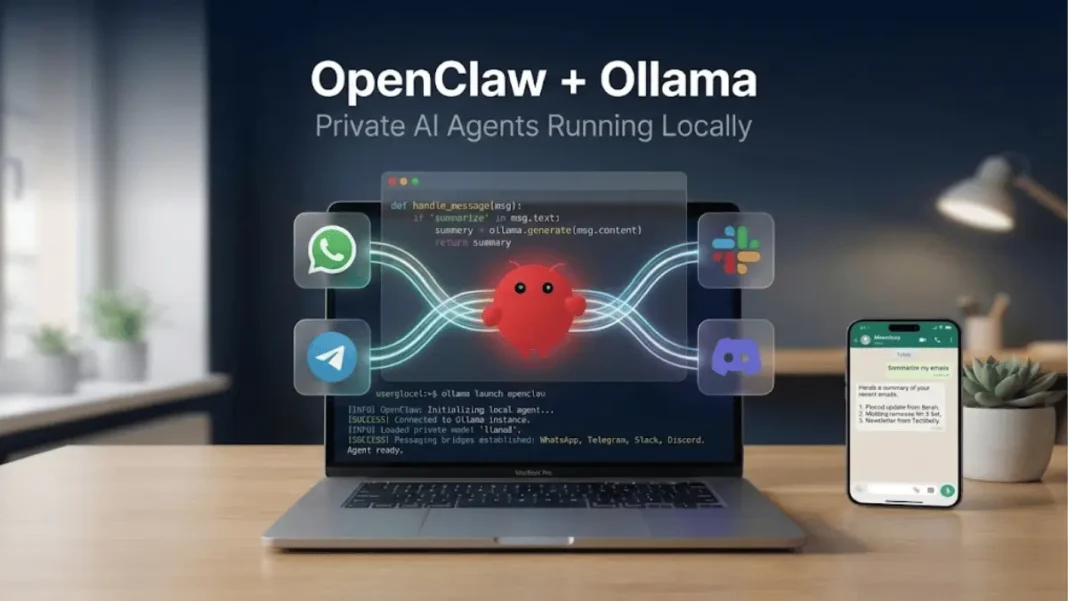
- OpenClaw now integrates directly with Ollama via
ollama launch openclawcommand - Runs completely local AI agents on your own devices without cloud dependencies
- Connects WhatsApp, Telegram, Slack, Discord, and iMessage to your private AI
- Requires models with 64k+ context length for optimal task completion
Ollama officially announced OpenClaw integration on February 1, 2026, introducing a streamlined method for running private AI agents. This pairing enables powerful personal AI automation without sending conversations, files, or workflows to third-party servers. OpenClaw executes entirely on your chosen hardware, whether that’s a Mac, Linux machine, Windows PC, or server.
What OpenClaw Does
OpenClaw is an open-source personal AI assistant that transforms messaging apps into command centers for AI automation. Previously known as Clawdbot and Moltbot, the project enables you to interact with AI models through platforms you already use daily.
The system routes messages from WhatsApp, Telegram, Slack, Discord, or iMessage to local AI models running on your device. You send a message requesting a task, and OpenClaw processes it using Ollama models, then delivers results back through your messaging app.
The Ollama Integration
Before this integration, configuring OpenClaw required manual model provider setup. Ollama’s February 2026 update introduced ollama launch openclaw, which automatically configures the connection between OpenClaw and your local Ollama models.
The command handles discovery of available models and establishes the gateway service. Changes reload automatically without interrupting the service. For users who prefer to configure settings before launching, the --config flag provides access to setup options.
How does OpenClaw connect to Ollama models?
OpenClaw connects to Ollama through its OpenAI-compatible API endpoint at http://127.0.0.1:11434. When you configure an OLLAMA_API_KEY environment variable, OpenClaw automatically discovers available models from your local Ollama installation. The ollama launch openclaw command handles this configuration automatically.
Installation Process
Ollama provides three installation methods for OpenClaw.
Method 1: Quick Install Script (Mac/Linux)
Run this command in your terminal:
curl -fsSL https://openclaw.ai/install.sh | bash
Method 2: Quick Install Script (Windows)
Execute this in PowerShell:
iwr -useb https://openclaw.ai/install.ps1 | iex
Method 3: NPM Installation
Install via Node Package Manager:
npm install -g openclaw@latest
openclaw onboard --install-daemon
After installing OpenClaw, ensure Ollama is installed from ollama.com, then launch the integrated service:
ollama launch openclaw
Add the --config flag if you want to review settings before starting.
Recommended Models
Ollama specifies that OpenClaw requires models with at least 64,000 token context length to reliably complete multi-step tasks. The official documentation lists these recommended models:
- qwen3-coder – Optimized for coding tasks, script generation, and debugging
- glm-4.7 – General-purpose tasks with broad capability
- glm-4.7-flash – Fast processing for quick responses
- gpt-oss:20b – Balanced performance across task types
- gpt-oss:120b – Complex reasoning and extended workflows
- kimi-k2.5 – Cloud model for agentic workflows and long document processing
Cloud models like kimi-k2.5 are available through Ollama’s cloud service for free initially, then transition to paid tiers for extended usage. These execute on Ollama’s infrastructure but route through your local OpenClaw gateway.
Pull a model using standard Ollama commands:
ollama pull qwen3-coder
What context length does OpenClaw need?
OpenClaw needs at least 64,000 tokens of context length to reliably complete multi-step tasks. This capacity allows models to maintain awareness of conversation history, file contents, and task instructions simultaneously. Models below this threshold may lose context during task execution.
Messaging Platform Setup
OpenClaw supports WhatsApp, Telegram, Slack, Discord, and iMessage. The onboarding process guides you through platform selection and authentication.
For WhatsApp, OpenClaw uses the linked devices feature. Telegram integration requires a bot token, while Slack and Discord use OAuth authentication. The setup wizard displays QR codes or authentication URLs as needed for each platform.
Once connected, messages sent to your OpenClaw contact trigger model execution on your local device.
Privacy and Local Execution
OpenClaw runs entirely on your own devices when using local Ollama models. Your conversations and task data process locally rather than uploading to remote servers.
The local-first architecture means you control the hardware, network access, and data retention. For sensitive workflows involving confidential documents or personal information, this architecture eliminates third-party data exposure.
When using Ollama’s cloud models like kimi-k2.5, those specific requests route through Ollama’s infrastructure, though the gateway itself remains on your device.
Model Provider Flexibility
While optimized for Ollama, OpenClaw supports connecting to other AI providers including Anthropic, OpenAI, Google, and Perplexity. Configure multiple providers simultaneously by setting appropriate API keys in the OpenClaw configuration.
This flexibility allows routing different task types to specialized models, coding tasks to one provider, creative writing to another, while maintaining a unified messaging interface.
Can I use OpenClaw without cloud AI subscriptions?
Yes. OpenClaw with Ollama runs entirely on local models available for free download. The OpenClaw software itself is free and open-source. Costs only arise if you choose to use Ollama’s paid cloud model tiers or connect external commercial AI providers.
Update OpenClaw to the latest version using npm:
npm install -g openclaw@latest
The gateway detects version changes and prompts for restart when running. Check your current version with:
openclaw --version
Ollama models update independently using standard Ollama commands:
ollama pull qwen3-coder
Frequently Asked Questions (FAQs)
Which messaging platforms does OpenClaw support?
OpenClaw officially supports WhatsApp, Telegram, Slack, Discord, and iMessage. Each platform requires separate authentication during the initial setup process. The onboarding wizard guides you through connecting chosen platforms.
Do I need internet access to use OpenClaw with Ollama?
You need internet access to receive messages through connected messaging platforms (WhatsApp, Telegram, etc.). Task execution using local Ollama models happens on your device without internet requirements. If using Ollama’s cloud models, those specific requests require internet connectivity.
What happens when I use the –config flag?
The --config flag launches OpenClaw’s configuration interface before starting the gateway service. This allows reviewing and modifying settings like messaging platform connections, model preferences, and gateway options without immediately launching the service.
Can I run OpenClaw on multiple devices?
Yes. Install OpenClaw on each device separately. Each installation can connect to different messaging accounts or share the same accounts depending on how you configure authentication. Models pulled on one device must be pulled separately on other devices.
How does OpenClaw discover available Ollama models?
OpenClaw queries Ollama’s API endpoint at http://127.0.0.1:11434 to discover models installed on your system. When you pull new models using ollama pull, OpenClaw automatically detects them on the next gateway reload.
Is OpenClaw compatible with other AI providers besides Ollama?
Yes. OpenClaw connects to Anthropic Claude, OpenAI GPT models, Google AI, and Perplexity through their respective APIs. Configure provider API keys in OpenClaw’s settings to enable multi-provider access. You can route different task types to different providers while using a single messaging interface.
What does “gateway auto-reload” mean?
Gateway auto-reload means OpenClaw detects configuration changes and applies them without requiring manual service restart. When you modify settings or pull new Ollama models, the gateway reloads automatically to incorporate updates while maintaining active messaging connections.

